

Authorization header. Keys start with the gx_ prefix.
Using your API key
- cURL
- Node.js
- Python
Creating a key
1
Sign in
Open app.magica.com and sign in.
2
Open Settings
Click the Settings button at the bottom of the left sidebar.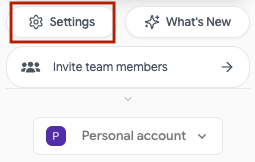
Account menu — click Settings
3
Open API Keys
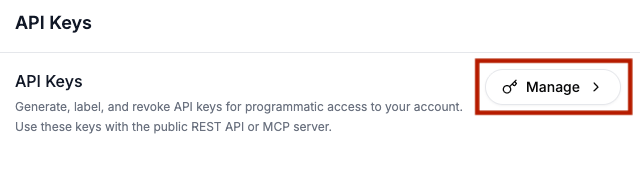
Select the API Keys tab in the settings sidebar, then click Manage.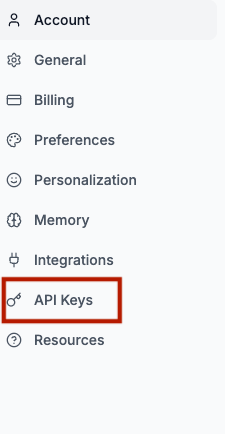
Settings sidebar — API Keys tab
API Keys panel — click Manage
4
Create the key
Click Create Key, enter a label (e.g. “Production”), and optionally set
an expiration date.
5
Copy the key
Copy the full key immediately — it’s only shown once.
Key properties
You can create up to 10 API keys per account. Each key has its own label, rate limits, and optional expiration.Managing keys
Edit a key
Update label or rate limits from Settings → API Keys. Click the pencil
icon next to any key.
Revoke a key
Click the revoke button next to any key. Revocation is immediate — requests
using that key start returning
401.Revoking a key does not affect other keys on your account. Your other keys
continue working normally.
Key expiration
You can optionally set an expiration date when creating a key. After it passes:- The key is automatically invalidated by the system
- API requests using the key return
401 Unauthorized - The key shows an “Expired” badge in the dashboard
- You can revoke expired keys to clean up your list
Rate limits
Each API key has its own rate limits that you can configure:
When you exceed a rate limit, the API returns a
429 Too Many Requests response with a Retry-After header: