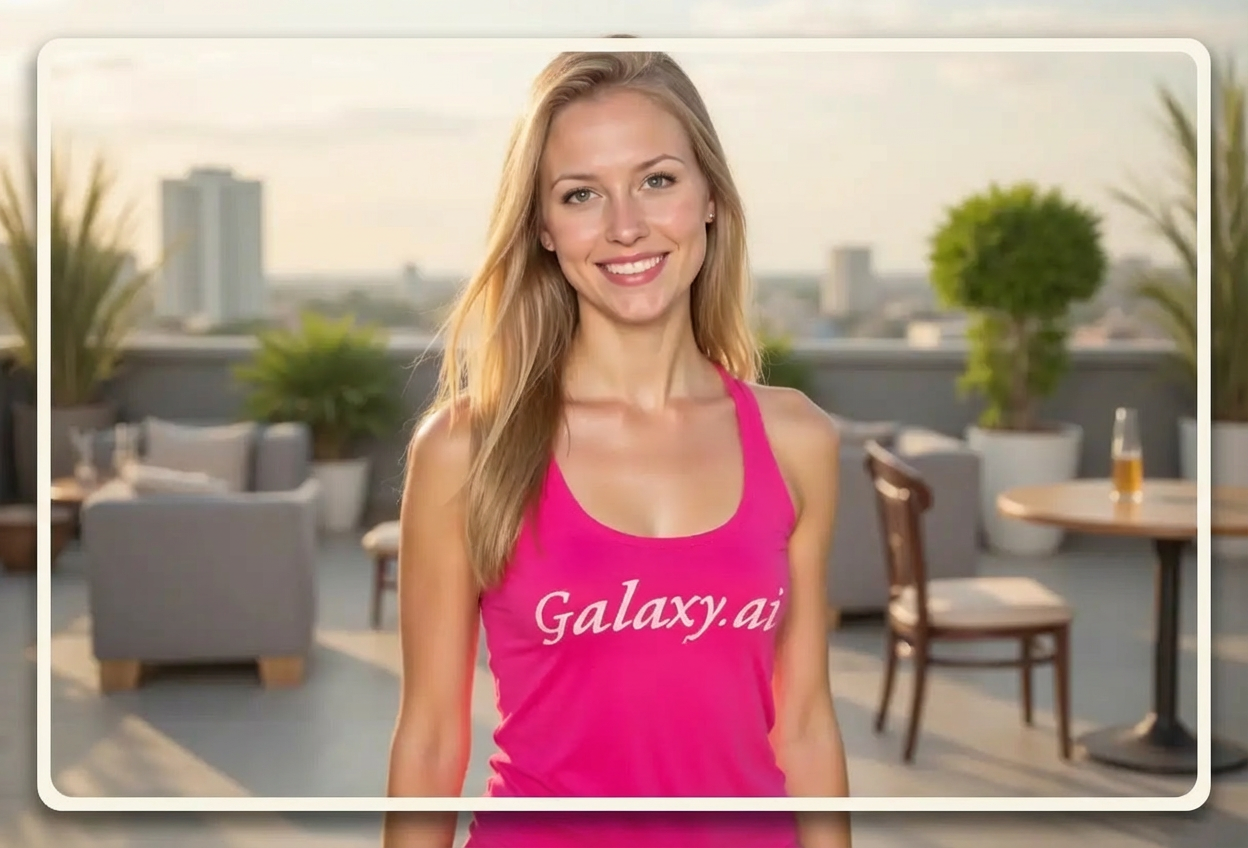
Choices: Any Pattern, Solid, Dotted, Dashed, Floral, Geometric, Art Deco, Wave
Corner Style
Choose how corners are styled
Choices: Any Style, Sharp, Rounded, Beveled, Ornate, Cut
Why Choose Our Add Border to Photo Tool?
Transform your photos with professional borders and frames using our AI-powered tool. Perfect for presentations, social media, prints, and more.
Advanced AI for perfect border placement
Multiple border styles from classic to modern
Customizable width and color options
Professional-quality frame effects
High-resolution output for printing
Instant results with clean edges
Perfect for any photo size or format
No design skills required
Decorative patterns and textures available
Ideal for galleries and portfolios
How Our Add Border to Photo Tool Works
Add professional borders to your photos in three easy steps:
01
Attach Your Photo
Upload any photo you want to frame. Works with all image formats and sizes for versatile framing options.
02
Customize Border Settings
Choose your border style, width, color scheme, pattern, and corner style from our comprehensive options.
03
Generate & Download
Let AI add a perfectly aligned border to your photo with professional quality. Download your framed image instantly.
Key Features of Add Border to Photo Tool
Multiple Border Styles
Choose from classic solid, modern minimalist, vintage ornate, polaroid, 3D embossed, and many more styles.
Instant Processing
Get professional borders added in seconds with precise alignment and perfect edge quality.
Customizable Colors
Select from white, black, gold, silver, wood texture, rainbow gradient, and other beautiful color schemes.
Decorative Patterns
Add solid, dotted, floral, geometric, art deco, or wave patterns to make your borders unique and artistic.
Adjustable Width
Control border thickness from thin to extra thick, or use variable widths for creative effects.
High-Quality Output
Download bordered photos in high resolution suitable for printing, framing, and professional use.
Who Can Benefit from Our Add Border to Photo Tool?
Perfect for anyone needing professional photo framing and borders:
Photographers
Add professional borders to portfolio images, client deliverables, and exhibition prints.
Social Media Managers
Create consistent branded posts with custom borders that enhance visual appeal and recognition.
Graphic Designers
Quickly add borders to images for layouts, presentations, and design projects without manual editing.
E-commerce Sellers
Enhance product photos with professional borders for listings that attract more buyers.
Artists & Creators
Frame artwork and digital creations with borders that complement your artistic style.
Event Planners
Create elegant framed photos for weddings, parties, and special events with matching border styles.
Tips for Better Results
Tip 1
Match Border to Photo Style
Use classic borders for traditional photos, modern minimalist for contemporary images, and vintage for old-style photos.
Tip 2
Consider Photo Subject
Thin borders work well for detailed images, while thicker borders suit simpler compositions or portraits.
Tip 3
Choose Complementary Colors
Select border colors that complement or contrast with your photo's dominant colors for maximum impact.
Tip 4
Use White Space Wisely
Thicker borders create more separation and focus, perfect for gallery walls or crowded social media feeds.
Tip 5
Experiment with Patterns
Decorative patterns work great for special occasions, while solid borders suit professional or minimalist looks.
Tip 6
Consider Final Use
Use polaroid style for social media nostalgia, shadow drop for depth, or 3D embossed for printed materials.
Tip 7
Test Multiple Versions
Create several variations with different border styles to find the perfect frame for your photo.
Frequently Asked Questions About Add Border to Photo Tool
What border styles are available?
We offer classic solid, modern minimalist, vintage ornate, double line, polaroid style, artistic brush, 3D embossed, shadow drop, and more. Each style creates a different aesthetic from elegant to creative.
Can I customize the border color?
Yes! Choose from white, black, gold, silver, wood texture, rainbow gradient, pastel tones, metallic, and more color schemes to match your photo and desired look.
How do I choose the right border width?
Thin borders (5-10px) suit detailed photos, medium (15-30px) works for most images, thick (40-60px) creates strong framing, and extra thick (80px+) makes bold statements. Variable widths offer creative asymmetry.
What are decorative patterns?
Patterns add texture and visual interest to borders. Options include solid, dotted, dashed, floral, geometric, art deco, and wave patterns that can transform a simple border into an artistic frame.
Will borders work with any photo size?
Yes! This Magica workflow automatically adjusts borders to fit any photo dimensions while maintaining proper proportions and quality. Works with square, landscape, portrait, and panoramic formats.
Can I add borders to already edited photos?
Absolutely! You can add borders to any photo, whether it's already edited or straight from your camera. The tool works with any image format.
What corner styles are available?
Choose from sharp (90-degree), rounded (soft curves), beveled (angled edges), ornate (decorative), or cut (artistic notches) corner styles to customize your border's appearance.
Are these borders suitable for printing?
Yes! All bordered images are generated in high resolution suitable for professional printing. The borders maintain crisp edges and quality at any size.
Can I use bordered photos commercially?
Yes! You have full rights to use your bordered photos for personal and commercial purposes, including prints, social media, marketing materials, and sales.
How does the polaroid style border work?
Polaroid style creates a thick white border with extra space at the bottom, mimicking classic instant film photos. Perfect for nostalgic and vintage aesthetic.
What's the difference between 3D embossed and shadow drop?
3D embossed creates a raised border effect with depth and dimension, while shadow drop adds a drop shadow behind the photo for a floating appearance. Both add visual interest.
Do I need design experience to use this tool?
No! The tool is designed for everyone. Simply select your preferences from the dropdown menus, and our AI creates professional borders automatically.