Source image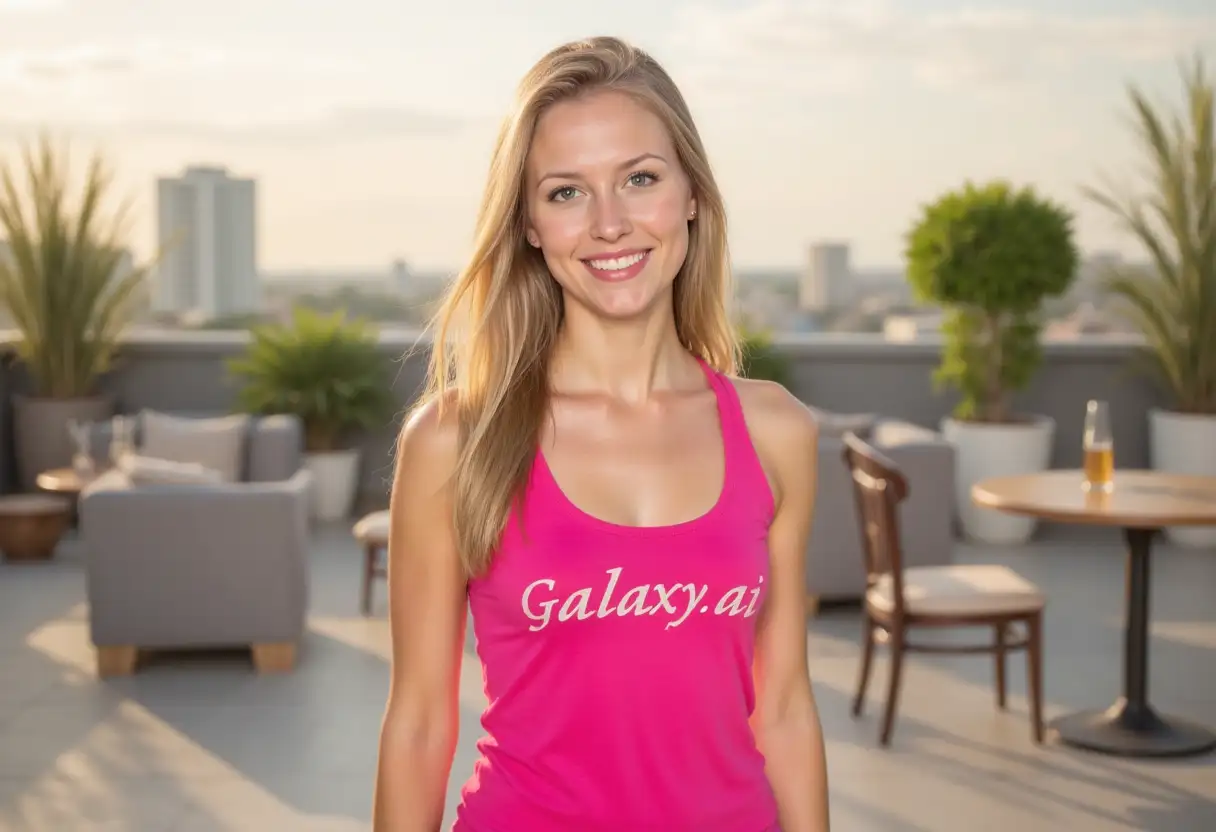
Result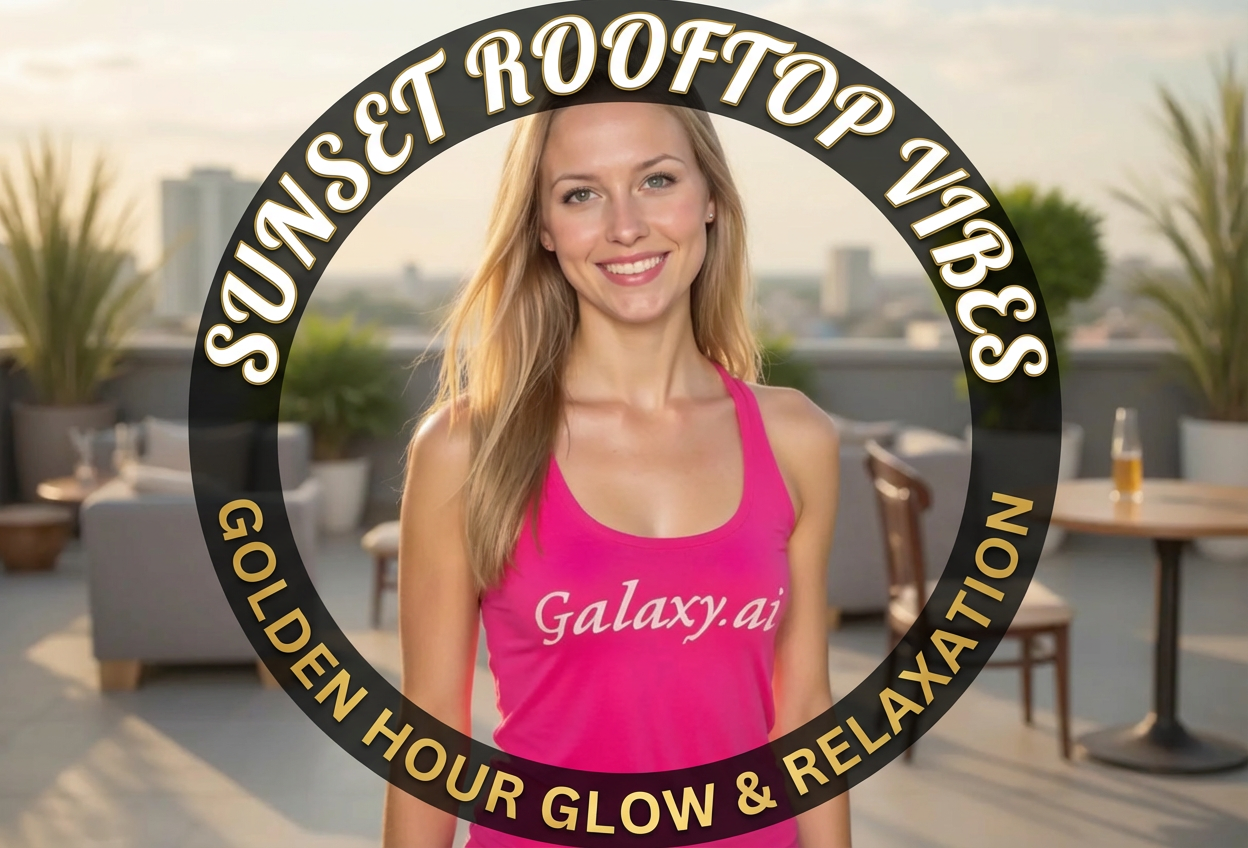

Create eye-catching designs with curved text
Compare the source image with each finished result.
The agent gathers these inputs and preferences in the conversation before it starts.
Enter the text you want to curve on your photo...
Choices: Any Style, Arch Up, Arch Down, Circle, Wave, Spiral, Semicircle
Choices: Any Position, Top, Bottom, Center, Left Side, Right Side, Around Object
Choices: Any Font, Sans Serif, Serif, Script/Handwriting, Bold, Decorative, Vintage
Choices: Any Color, White, Black, Gold, Silver, Red, Blue
Create professional curved text designs without graphic design software.
Create curved text designs in three simple steps:
attach your photo and type the text you want to curve along a path.
Select curve style, position, font, and color to match your design vision.
Let AI create perfectly curved text integrated with your image and download the result.
Create arches, circles, waves, spirals, and semicircles effortlessly.
AI ensures proper spacing, kerning, and readability on curved paths.
Place curved text anywhere: top, bottom, center, or around objects.
Choose from sans serif, serif, script, decorative, and vintage fonts.
Download crisp, clear curved text perfect for printing or digital use.
Match text color to your design with white, black, gold, and more options.
Perfect for creating professional designs with curved typography.
Create circular badges, seals, and emblems with curved text elements.
Add curved labels and text to product mockups and packaging.
Design invitations, banners, and decorations with artistic curved text.
Create eye-catching posts and graphics with curved typography.
Add curved text to apparel designs for unique, professional looks.
Create professional badges, seals, and stamps for branding.
Shorter text (3-8 words) curves more naturally and remains readable. Longer text may require larger curve radius.
Use arches for logos, circles for badges, waves for artistic designs, and semicircles for seals.
Ensure text follows a smooth curve without being too tight. Extreme curves reduce readability.
Sans serif fonts work best for most curved text. Script fonts add elegance but need careful curve selection.
Use colors that contrast well with your background for maximum readability.
For badges and seals, use symmetrical curves (circles, arches) for balanced, professional appearance.
Experiment with text placement to find what best complements your image composition.
You can create arch-up, arch-down, circles, waves, spirals, and semicircles. Each style can be positioned anywhere on your image.
Yes, the AI ensures proper spacing and kerning to maintain readability even on curved paths. Shorter text works best for tighter curves.
Absolutely! The circle and semicircle options are perfect for creating badges, seals, logos, and emblems with text wrapping around.
Choose from sans serif, serif, script, bold, decorative, and vintage font styles. Each style is optimized for curved text display.
Use arches for classic logos, circles for badges, waves for artistic designs, and spirals for unique, dynamic effects.
Yes, select from preset colors like white, black, gold, silver, red, and blue, or describe custom colors in your prompt.
Yes, the tool generates high-resolution output suitable for both digital use and professional printing.
Yes, use the 'around object' position option to wrap text around specific elements in your image.
3-8 words work best for most curved text. Longer text may require gentler curves or splitting into multiple curved lines.
Yes, select the vintage font style option to create retro badges, seals, and labels with authentic period typography.


