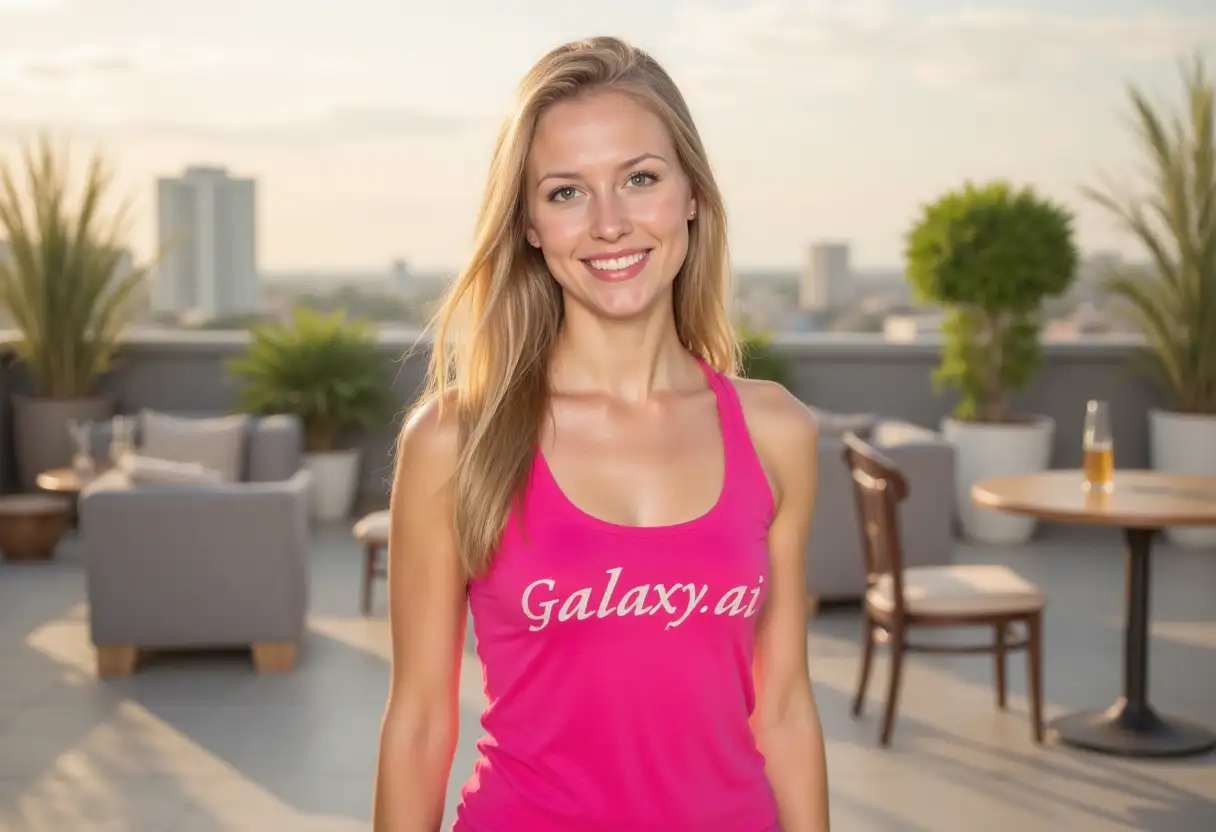
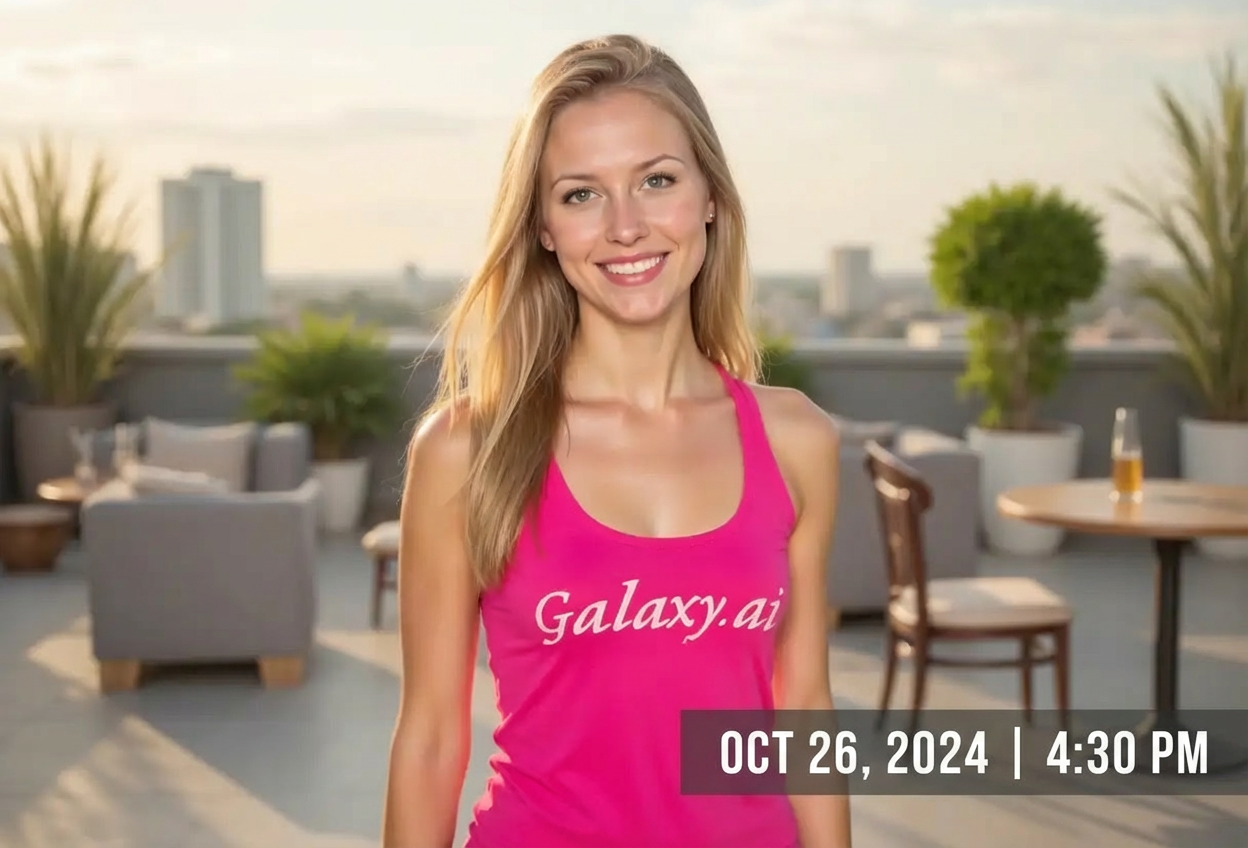
Choices: Any Size, Small Discrete, Medium Standard, Large Prominent, Extra Large Feature
Why Choose Our Add Date to Photo Tool?
Add meaningful dates and timestamps to your photos using AI. Perfect for preserving memories, documenting events, creating vintage looks, and professional photography with camera-style timestamps.
Advanced AI date placement and styling
Multiple date formats and styles
Camera timestamp and vintage options
Customizable positioning and colors
Professional typography choices
Event labeling and memory preservation
Polaroid and film-style dating
Instant application with perfect placement
Readable yet aesthetically pleasing
Ideal for photographers and event documentation
How Our Add Date to Photo Tool Works
Add professional dates to your photos in three simple steps:
01
Upload & Enter Date
attach your photo and enter the date or event text you want to add. Use any format you prefer.
02
Customize Appearance
Choose date style, position, background treatment, text color, and size for perfect integration.
03
Generate & Download
Let AI add your date with professional styling and placement. Download your dated photo instantly.
Key Features of Add Date to Photo Tool
Multiple Date Styles
Choose from camera timestamp, elegant serif, modern sans, handwritten, vintage typewriter, digital clock, and more.
Instant Application
Add professional dates in seconds with perfect placement and styling optimized for your photo.
Camera-Style Timestamps
Create authentic camera timestamp looks like professional DSLR or vintage film camera date stamps.
Flexible Backgrounds
Choose transparent, semi-transparent overlay, solid bars, rounded badges, or film strip backgrounds.
Strategic Positioning
Place dates in corners, center, or polaroid margins for classic photo dating appearance.
Memory Preservation
Download dated photos perfect for albums, scrapbooks, and preserving precious memories forever.
Who Can Benefit from Our Add Date to Photo Tool?
Perfect for anyone wanting to date and document their photos:
Photographers
Add professional timestamps to photos for client deliverables, documentation, and authentic camera dating effects.
Memory Keepers
Date family photos, vacation snapshots, and special moments to preserve when precious memories were captured.
Event Planners
Label wedding photos, birthday parties, and special events with dates for guests and memory albums.
Social Media Users
Create nostalgic throwback posts with vintage-style dates and camera timestamps for engagement.
Scrapbookers
Add dates to photos for physical and digital scrapbooks, ensuring memories are properly documented.
Project Documenters
Date progress photos for construction, renovations, gardening, or any project requiring timeline documentation.
Tips for Better Results
Tip 1
Choose Style to Match Era
Camera timestamp for modern digital look, vintage typewriter for retro feel, polaroid style for nostalgic 80s-90s aesthetic.
Tip 2
Position Like Real Cameras
Bottom right corner is traditional camera timestamp placement. Bottom left works too. Polaroid margin for instant film look.
Tip 3
Use Readable Backgrounds
Semi-transparent overlay or solid color bar ensure dates are readable on busy photo backgrounds.
Tip 4
Match Colors to Photo Tone
Yellow timestamp for vintage warmth, white for modern clean, orange retro for 70s vibes, contrasting for maximum visibility.
Tip 5
Size According to Purpose
Small discrete for authentic camera timestamp, medium for standard dating, large when date is a design feature.
Tip 6
Format Dates Consistently
Use the same date format across your photo collection for professional consistency and easy organization.
Tip 7
Include Event Names
Add 'Wedding Day', 'First Birthday', or 'Summer Vacation' alongside dates for more context and memory triggers.
Frequently Asked Questions About Add Date to Photo Tool
What date formats can I use?
Any format you prefer! Enter dates like '06/15/2024', 'June 15, 2024', '15.06.24', or event text like 'Wedding Day 2024'. The tool displays exactly what you enter, giving you complete control.
What date styles are available?
Choose from camera timestamp (DSLR style), elegant serif (formal), modern sans (contemporary), handwritten (personal), vintage typewriter (retro), digital clock (technical), classic film (nostalgic), and polaroid style (80s/90s).
Can I make it look like a real camera timestamp?
Yes! Select 'camera timestamp' style with 'bottom right corner' position and 'yellow timestamp' or 'orange retro' color for authentic DSLR or film camera date stamp appearance.
Where should I position the date?
Bottom right corner is traditional for camera timestamps. Bottom left also works well. Polaroid bottom margin creates instant film aesthetic. Top corners for formal documentation style.
What background style should I choose?
Transparent for minimalist look, semi-transparent overlay for readability on busy backgrounds, solid color bar for strong presence, rounded badge for modern touch, film strip for vintage camera style.
Can I create polaroid-style dated photos?
Absolutely! Select 'polaroid style' date style with 'polaroid bottom margin' positioning and handwritten or vintage typewriter fonts for authentic instant film dating.
Will dates work on any photo?
Yes! The tool works with any photo type - portraits, landscapes, events, products. Background styles ensure readability regardless of photo complexity.
Can I add event names instead of just dates?
Yes! Enter any text you want - 'Sarah's Birthday', 'Trip to Paris', 'First Day of School', or combine with dates like 'Wedding Day - June 15, 2024'.
What colors make dates most readable?
White and yellow work on dark backgrounds, black on light backgrounds. 'Contrasting' option automatically selects colors for maximum visibility on any photo.
How do I create vintage-looking dated photos?
Combine 'vintage typewriter' or 'classic film' style with 'orange retro' or 'yellow timestamp' color and 'film strip' background for authentic retro dated photo aesthetic.
Can I use this for professional photography?
Yes! Many photographers add dates to client photos for documentation, events, and storytelling. Use discrete sizing and professional styles for client deliverables.
Do I need to know design?
No! Simply enter your date text and select style preferences. Our AI handles professional placement, sizing, and integration automatically.