Source image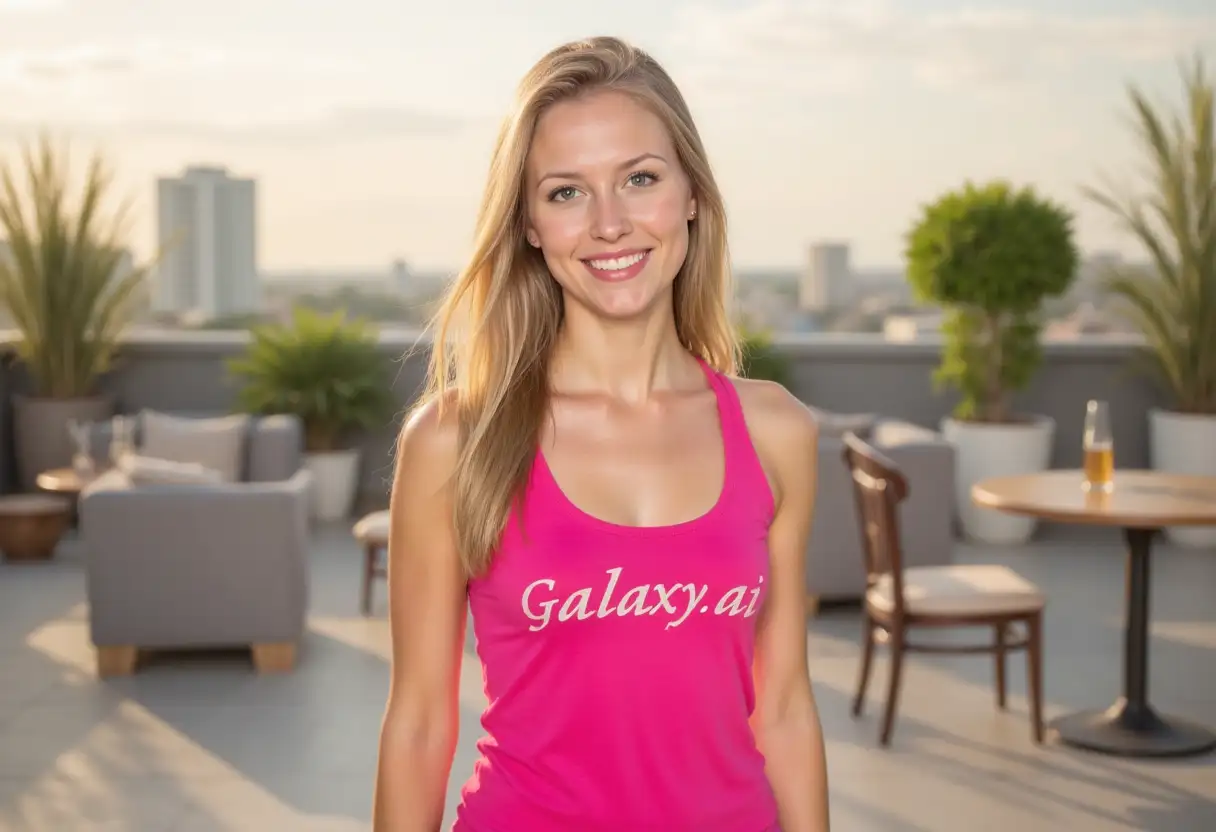
Result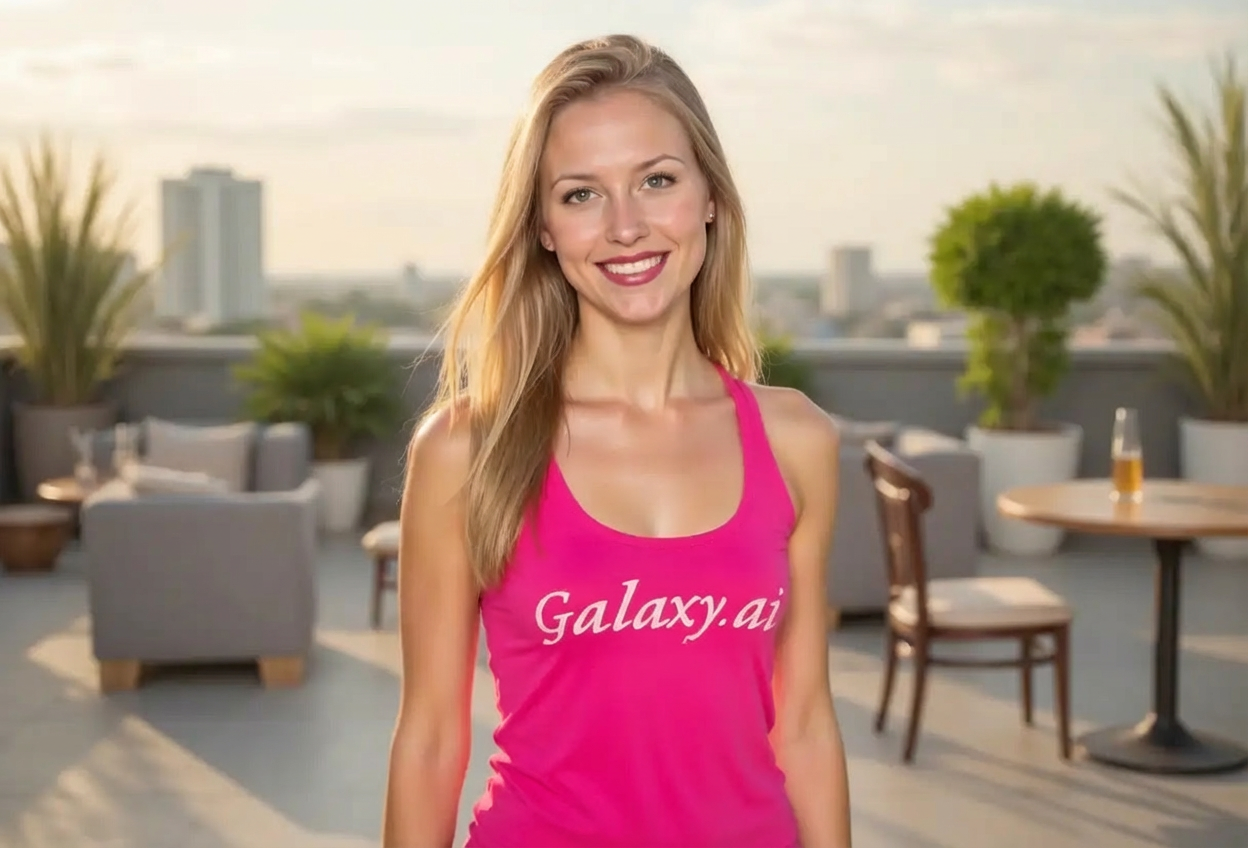

Add beautiful lipstick colors to photos
Compare the source image with each finished result.
The agent gathers these inputs and preferences in the conversation before it starts.
Describe what you want to create...
Choose the lipstick shade
Choices: Any Color, Red, Pink, Nude, Coral, Berry, Plum, Burgundy, Mauve, Orange, Brown, Rose
Choose the lipstick finish
Choices: Any Finish, Matte, Glossy, Satin, Metallic, Shimmer, Cream
Choose the color intensity
Choices: Any Intensity, Sheer, Light, Medium, Full Coverage, Bold
Try on lipstick shades virtually and find your perfect color before purchasing.
Add lipstick to photos in three simple steps:
Select a clear photo where lips are visible. Front-facing portraits work best.
Select your desired color, finish (matte/glossy), and intensity level.
AI applies lipstick naturally with realistic texture and proper lip contouring.
Choose from red, pink, nude, coral, berry, plum, and many more classic and trendy colors.
Select matte, glossy, satin, metallic, shimmer, or cream finishes for different looks.
From sheer tint to bold full coverage, customize the color intensity perfectly.
AI ensures realistic lip contouring, texture, and seamless color application.
Preview how lipstick shades look before purchasing from beauty stores.
Get beautifully enhanced photos in seconds without physical makeup application.
Perfect for beauty enthusiasts, shoppers, and makeup professionals.
Try on lipstick shades virtually before purchasing to find your perfect match.
Experiment with different lipstick colors and finishes for inspiration.
Create makeup content showing various lipstick looks without applying multiple products.
Visualize lipstick choices for clients before actual makeup application.
Show lipstick products on models for online beauty stores and catalogs.
Enhance photos for special occasions or see how different shades complement your look.
Photos with clearly visible, well-lit lips produce the most realistic lipstick application.
Select shades that complement your skin tone—warm tones for warm skin, cool for cool.
Use matte for everyday, glossy for nights out, and metallic for special events.
Begin with medium coverage for natural results, then adjust to sheer or bold as desired.
Photos with naturally defined lips work best, but all lip shapes can be enhanced.
Try trending colors like coral, plum, or nude to stay current with beauty trends.
Choose from red, pink, nude, coral, berry, plum, burgundy, mauve, orange, brown, rose, and many other popular shades.
Yes, select from matte, glossy, satin, metallic, shimmer, and cream finishes to match your desired look.
Yes, AI ensures realistic lip contouring, proper texture, natural shine, and seamless color application.
Clear front-facing portraits with visible, well-lit lips produce the most realistic and beautiful results.
Absolutely! Choose from sheer, light, medium, full coverage, or bold intensity levels.
Yes, perfect for virtually trying on lipstick shades before purchasing from beauty stores, reducing returns.
Definitely! Great for showing clients different lipstick options before actual makeup application.
Matte is flat, glossy is shiny, satin is between, metallic has shine, shimmer has sparkle, and cream is rich.
AI processing typically takes 20-40 seconds to apply lipstick with realistic texture and color.
Yes, perfect for creating beauty tutorials, product reviews, and makeup inspiration content without multiple applications.


