Source image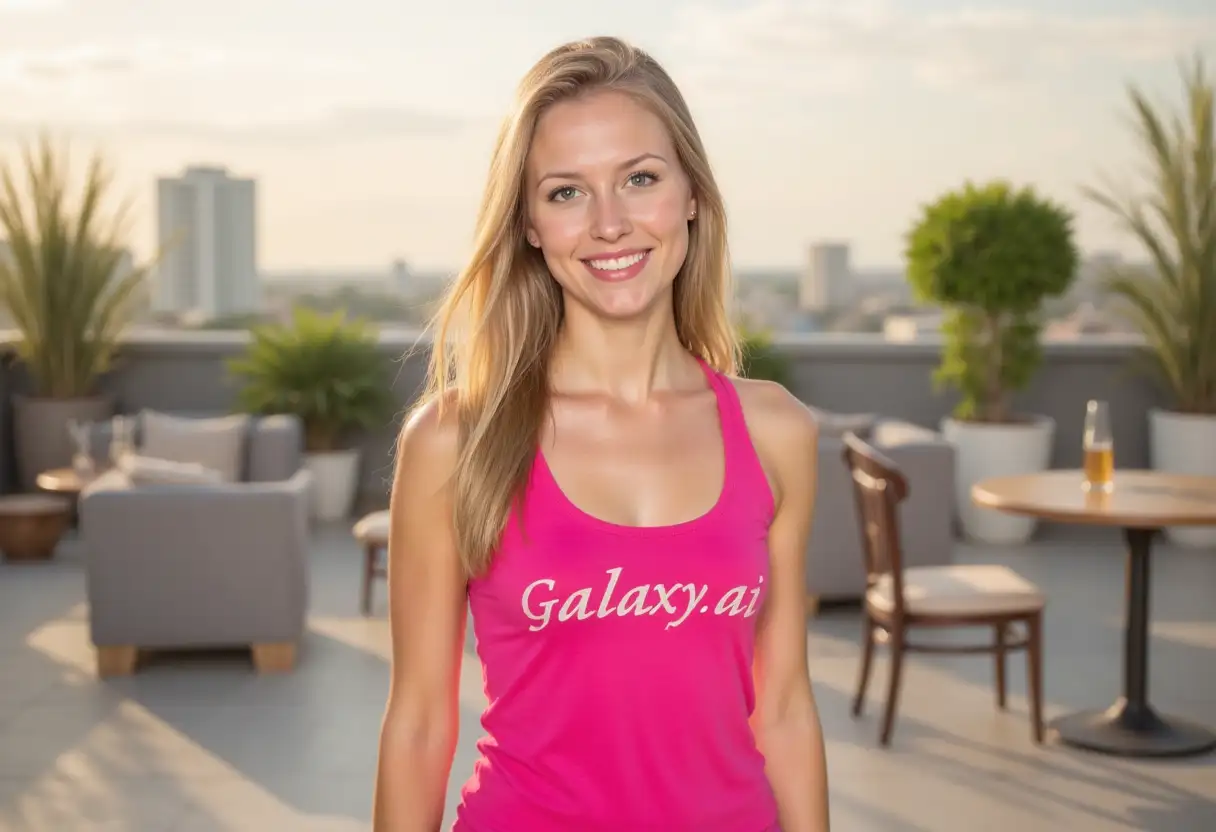
Result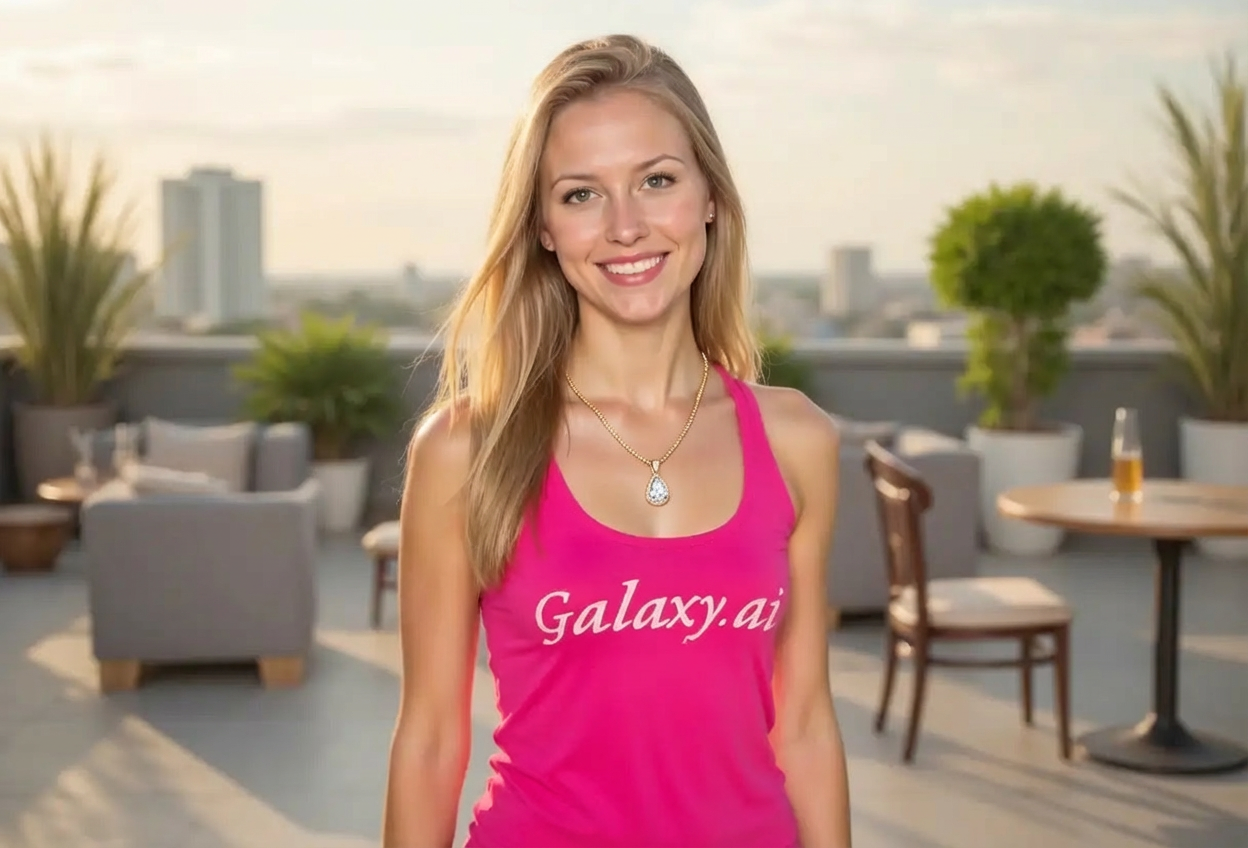

Add elegant necklaces to any photo
Compare the source image with each finished result.
The agent gathers these inputs and preferences in the conversation before it starts.
Describe what you want to create...
Choose the necklace style
Choices: Any Style, Chain, Pendant, Choker, Statement, Pearl, Layered, Locket, Collar, Bib
Choose the necklace material
Choices: Any Material, Gold, Silver, Platinum, Rose Gold, Diamond, Pearl, Gemstone, Crystal
Choose the necklace length
Choices: Any Length, Choker (14-16 inches), Princess (16-18 inches), Matinee (20-24 inches), Opera (28-34 inches), Rope (over 34 inches)
Visualize how different necklaces look on you before making jewelry purchases.
Add necklaces to photos in three simple steps:
Select a photo showing your neck and upper chest area. Portrait or upper-body shots work best.
Select necklace style, material, and length to match your preferences and outfit.
AI adds the necklace with natural draping, proper positioning, and elegant appearance.
Choose from chains, pendants, chokers, statement pieces, pearls, and more.
Select from gold, silver, platinum, diamonds, pearls, and precious gemstones.
From choker to rope length, find the perfect necklace length for your neckline.
AI ensures necklaces drape naturally with realistic weight and movement.
Preview necklaces before purchasing from online jewelry stores or boutiques.
Visualize how necklaces complement different outfits and necklines.
Perfect for jewelry shoppers, fashion enthusiasts, and style planners.
Visualize how necklaces look on you before making online jewelry purchases.
Experiment with different necklace styles to complete your outfit looks.
Plan perfect wedding necklace to complement your dress and overall bridal look.
Visualize necklace designs on models without creating physical prototypes.
Show jewelry products on models for online stores without expensive photo shoots.
Create jewelry recommendations and complete outfit styling for clients.
Photos with visible neck and upper chest area work best for necklace placement.
Chokers suit high necklines, princess length for crew necks, longer for V-necks.
Match necklace formality to clothing—statement pieces for formal, simple chains for casual.
Select metals that complement skin tone—warm gold for warm tones, silver for cool.
Delicate chains for everyday, statement pieces for events, pearls for elegance.
Try layered necklace style to visualize how multiple pieces work together.
Choose from chain, pendant, choker, statement, pearl, layered, locket, collar, and bib necklace styles.
Yes, select from gold, silver, platinum, rose gold, diamond, pearl, gemstone, and crystal materials.
Yes, AI ensures realistic draping with proper weight, movement, and natural positioning on the neckline.
Options include choker (14-16"), princess (16-18"), matinee (20-24"), opera (28-34"), and rope (over 34").
Portrait or upper-body shots with visible neck and chest area, good lighting, and clear neckline.
Absolutely! Perfect for previewing how necklaces look before purchasing, reducing returns and disappointment.
Yes, ideal for visualizing bridal necklaces to match your wedding dress, veil, and overall look.
Yes, great for visualizing necklace designs on models before creating expensive physical samples.
AI processing typically takes 30-50 seconds to add the necklace with realistic draping and positioning.
Yes, upload photos in different outfits to see how various necklaces complement different necklines and styles.


