Upscaling Example 1
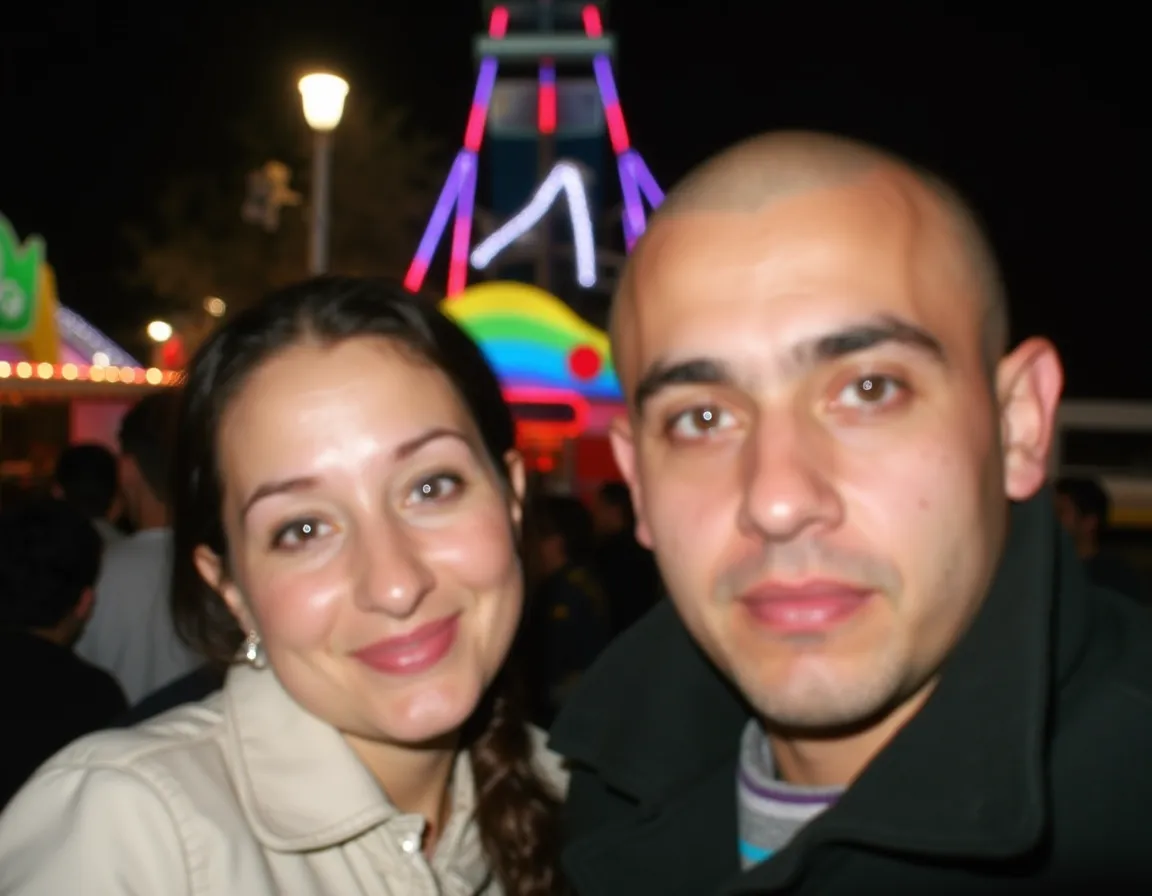
Original
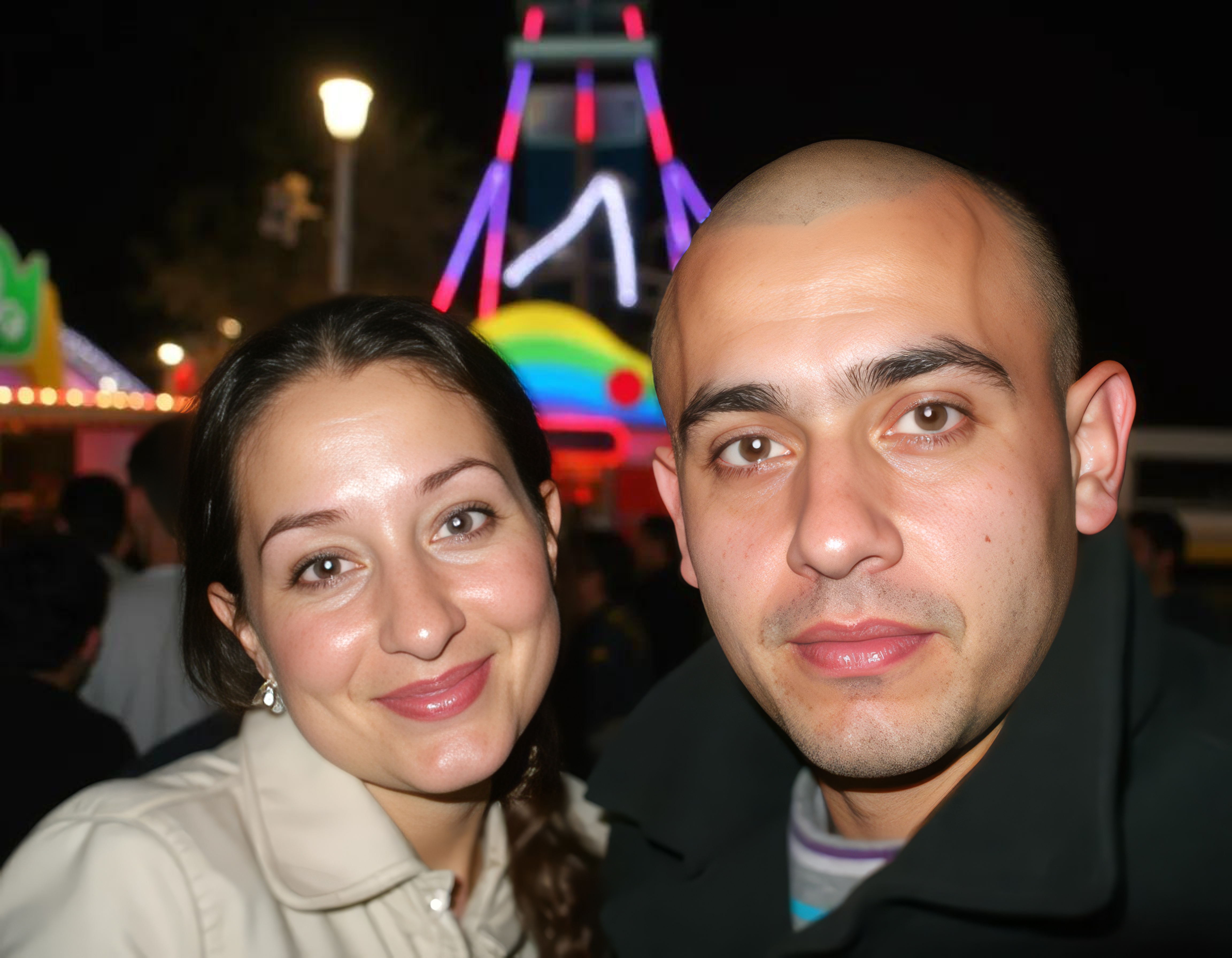
Upscaled

Enhance your image quality with AI-powered upscaling
See how our AI transforms low-resolution images into stunning high-quality photos
The agent gathers these inputs and preferences in the conversation before it starts.
attach a low-resolution image to enhance its quality.
Select the model to use for upscaling
Choices: Topaz AI, Clarity Upscaler, Crystal Upscaler (Portraits)
Select the upscale factor
Choices: 2x (Double size), 3x (Triple size), 4x (Quadruple size)
Transform low-resolution images into high-quality, crisp visuals with our advanced AI upscaling technology.
Enhance your image quality in three simple steps using cutting-edge AI technology.
Upload any low-resolution image from your device - photos, artwork, or graphics work great
Our advanced AI analyzes your image and intelligently adds detail while increasing resolution
Get your high-quality upscaled image with improved clarity and detail, ready for any use
AI intelligently increases resolution while preserving and enhancing image details
Advanced algorithms reduce blur and pixelation while adding realistic detail
Maintains original image characteristics while dramatically improving quality
Generate high-resolution images perfect for printing, web use, or professional projects
Images with good contrast and minimal noise typically produce better upscaling results
Images between 100x100 and 2000x2000 pixels work best for our AI upscaling algorithm
Photos, artwork, and graphics all work well - the AI adapts to different image types automatically
Higher quality source images will produce superior upscaled results with more detail
Our AI can typically upscale images by 2-4x their original resolution while maintaining or improving quality, depending on the source image.
Photos, digital artwork, graphics, and illustrations all work well. Images with clear details and good contrast typically produce the best results.
Processing time varies by image size and complexity, typically taking 1-5 minutes for most images.
We support common image formats including JPG, PNG, WEBP, and more. The output maintains the original format quality.
Yes! Our AI is particularly effective at enhancing small, pixelated, or low-resolution images into high-quality versions.
We support images up to 10MB in size. For best results, we recommend images between 100x100 and 2000x2000 pixels.


