Upload Image
attach a PNG, JPG, or JPEG image to vectorize

Transform any image into scalable vector graphics using AI
Reference media and sample results for this task.
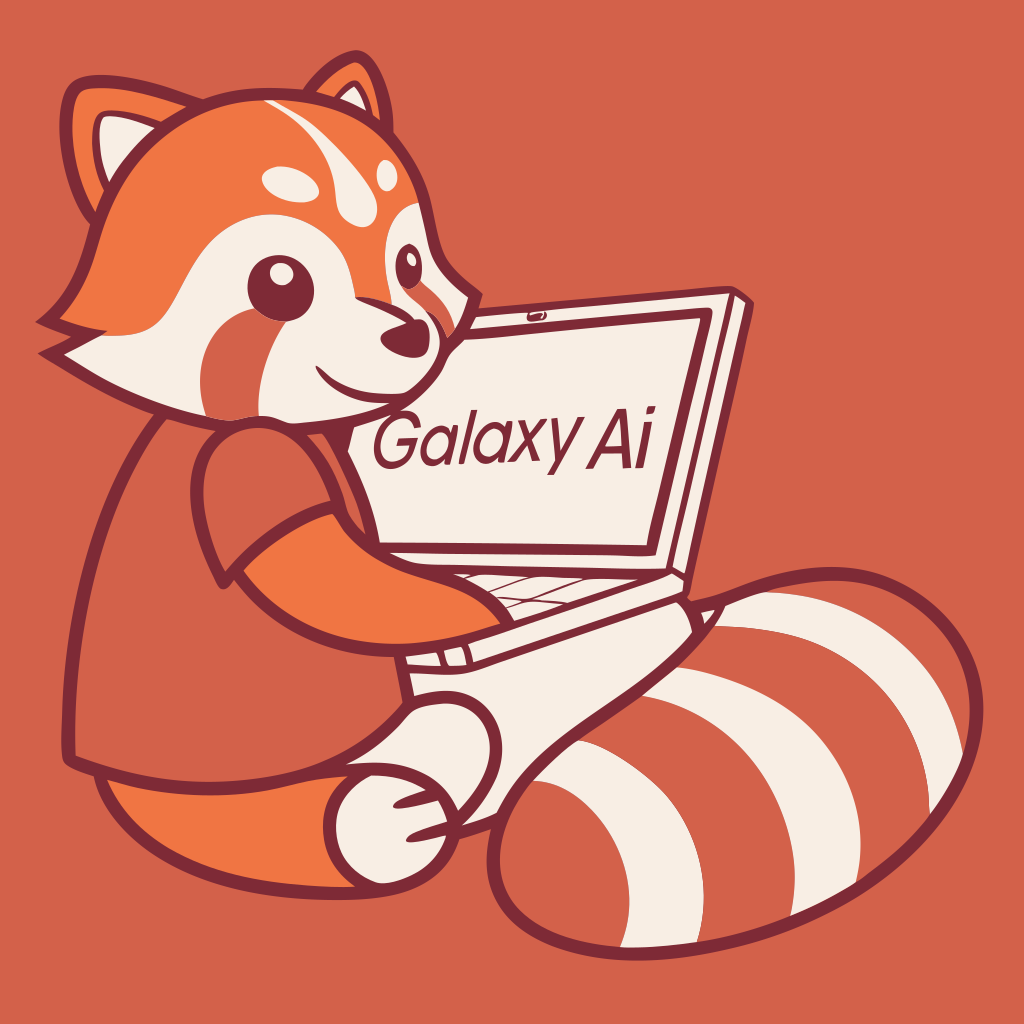


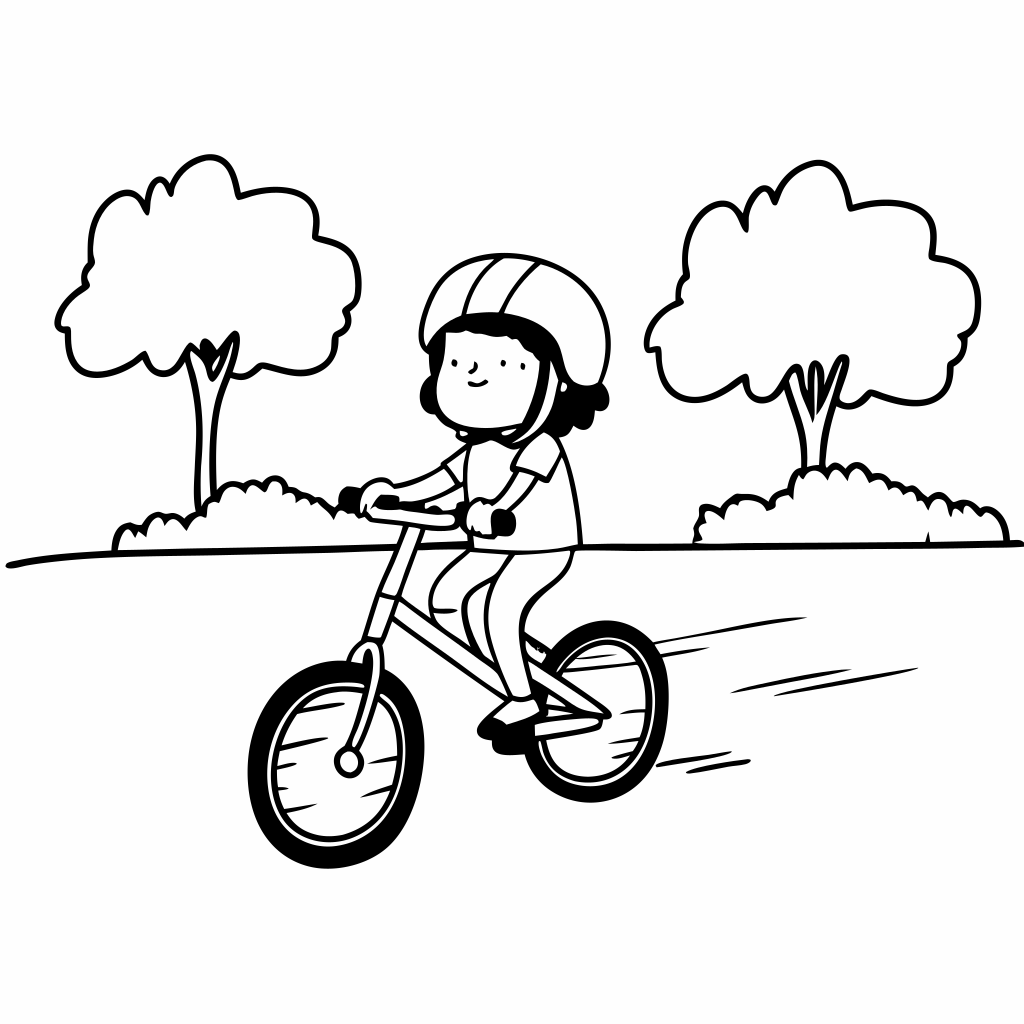
The agent gathers these inputs and preferences in the conversation before it starts.
attach a PNG, JPG, or JPEG image to vectorize
Choose between color or black & white vectorization
Choices: Color (Multiple Colors), Black & White
Choose a preset style for your vector output
Choices: Posterized 1, Posterized 2, Posterized 3, Curvy, Sharp, Detailed, Smoothed, Grayscale, Fixed Palette, Random Sampling 1, Random Sampling 2, Artistic 1, Artistic 2, Artistic 3, Artistic 4
Transform raster images into scalable vector graphics with AI precision.
Transform your images into vectors in three simple steps:
Upload any PNG, JPG, or JPEG image up to 5MB.
Select from various vectorization styles and presets.
Click vectorize and download your SVG file.
Advanced algorithms for clean, precise vector conversion.
Choose from various presets for different artistic effects.
Download your vectorized images instantly in SVG format.
Fine-tune your results with customizable presets.
This Magica workflow is designed to serve a wide range of professionals and creative individuals.
Convert sketches and designs into scalable vectors for professional projects and client work.
Transform digital artwork into vector format for enhanced versatility and editing capabilities.
Convert brand assets and logos into vector format for consistent, high-quality branding.
Create scalable vector graphics for responsive web design and optimal performance.
Transform marketing visuals into vectors for versatile use across different platforms.
Convert illustrations and graphics into vectors for high-quality content production.
Use high-contrast images with clear edges for best results.
Different presets work better for different types of images.
Clean, high-quality input images produce better vector results.
Choose presets based on your intended use - logos need simplicity, art can be more detailed.
Preview the vectorized result before downloading to ensure quality.
We support common image formats including PNG, JPG, and JPEG files up to 5MB in size.
We offer multiple presets including Default, Posterized, Curvy, Sharp, Detailed, and Artistic styles.
Yes! The generated SVG can be edited in any vector graphics software like Adobe Illustrator or Inkscape.
Currently, we support images up to 5MB in size for optimal processing.
Yes, you have full rights to use the vectorized images for both personal and commercial purposes.
Images with clear edges, good contrast, and minimal noise work best. High-quality logos, illustrations, and artwork are ideal.


