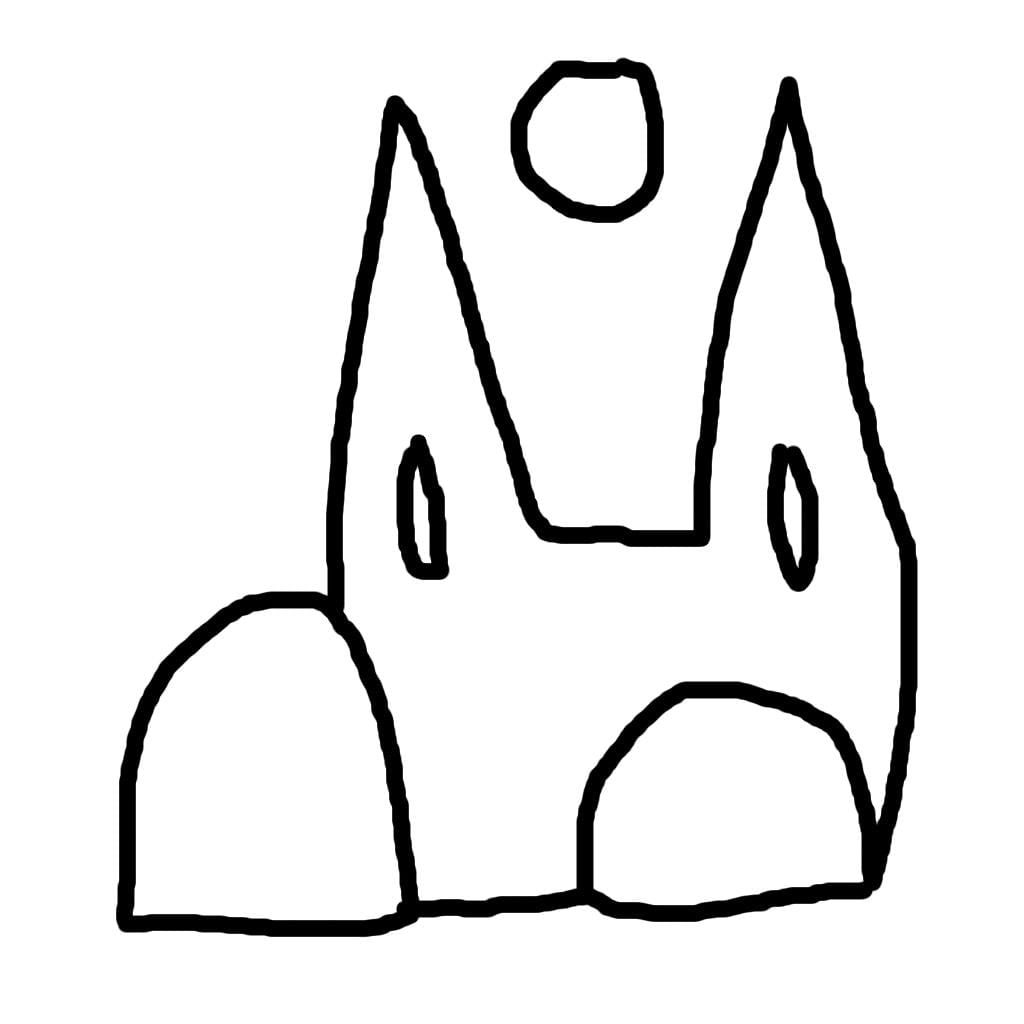
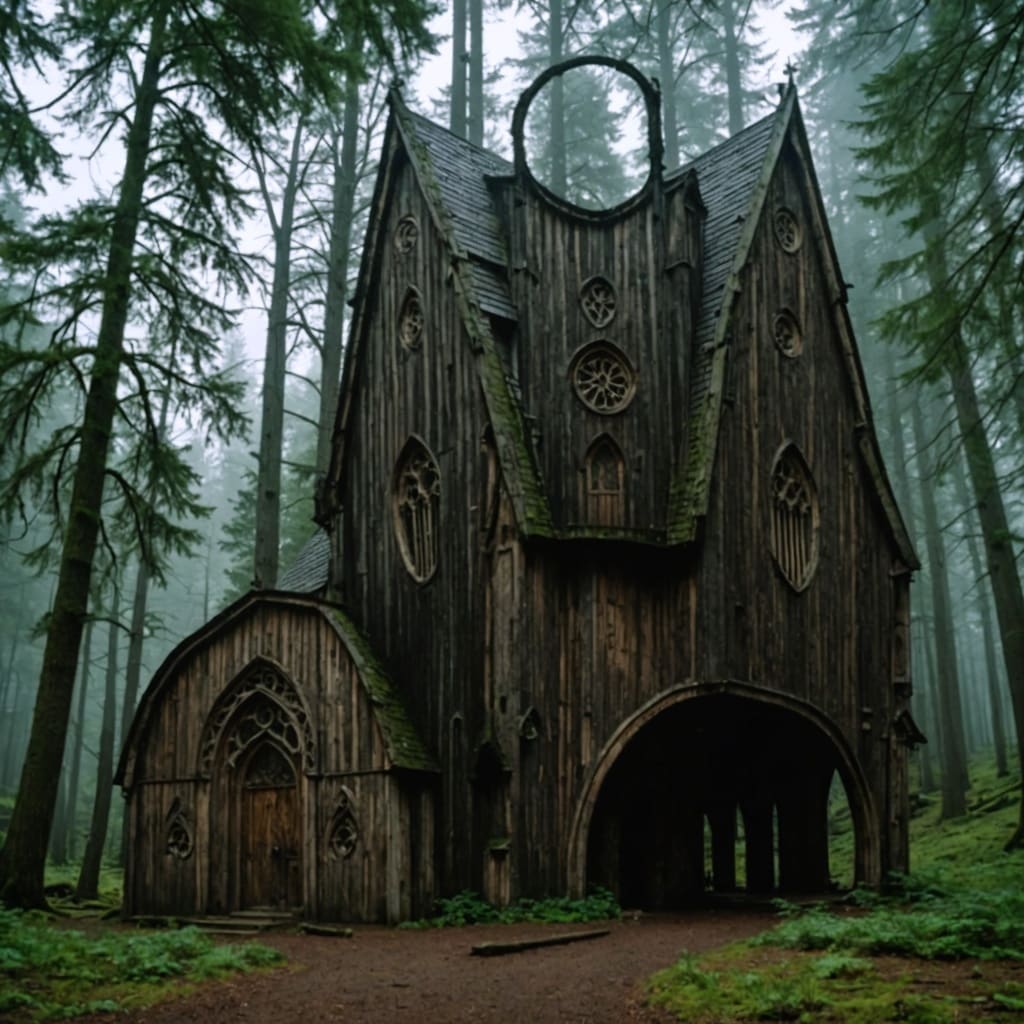
Compare the source image with each finished result.
Source image
Result
What Magica will ask for
The agent gathers these inputs and preferences in the conversation before it starts.
Describe what your sketch represents
Why Choose Our AI Sketch to Image Converter?
Transform your rough sketches and drawings into stunning, realistic images with the power of advanced AI technology. Perfect for designers, architects, artists, and anyone who wants to bring their ideas to life.
Convert any sketch into photorealistic images instantly
Multiple style options from photorealistic to artistic
Preserves the original composition and structure
Professional-quality output suitable for presentations
No artistic skills required for realistic results
Works with hand-drawn or digital sketches
High-resolution image generation
Fast processing in 20-40 seconds
Perfect for concept visualization
Ideal for architecture, product design, and art
How Our AI Sketch to Image Converter Works
Our advanced AI analyzes your sketch and transforms it into a realistic image in three simple steps.
01
Attach Your Sketch
Upload any sketch, drawing, or line art—hand-drawn or digital
02
Describe & Customize
Describe what your sketch represents and choose your preferred output style
03
Get Realistic Image
Download your transformed, professional-quality realistic image instantly
Key Features of AI Sketch to Image
AI-Powered Transformation
Advanced neural networks understand your sketch and generate photorealistic details automatically
Multiple Style Options
Choose from photorealistic, artistic, cinematic, illustration, or painting styles
Composition Preservation
Maintains your original sketch's layout, proportions, and structural elements
Lightning Fast
Get your realistic image in 20-40 seconds—no waiting hours for results
Detail Enhancement
AI adds realistic textures, lighting, shadows, and fine details automatically
High Resolution Output
Generate professional-quality images suitable for presentations and portfolios
Who Can Benefit from AI Sketch to Image?
This Magica workflow is designed for professionals, creatives, and anyone who needs to visualize ideas quickly and effectively.
Architects & Interior Designers
Transform architectural sketches into realistic renderings for client presentations
Product Designers
Convert product sketches into photorealistic mockups for pitches and testing
Artists & Illustrators
Explore different visual styles and bring rough concepts to life quickly
Content Creators
Generate unique, realistic images from simple sketches for social media and blogs
Students & Educators
Visualize concepts and ideas for projects, assignments, and teaching materials
App & Game Developers
Create realistic concept art and assets from simple sketches and wireframes
Tips for Best Results
Tip 1
Use Clear Outlines
Sketches with clear, well-defined outlines and shapes produce the most accurate results. Avoid overly messy or ambiguous lines.
Tip 2
Be Descriptive
Provide detailed descriptions of what your sketch represents—mention materials, colors, mood, and specific features for better results.
Tip 3
Include Key Details in Sketch
Add important elements like windows, doors, facial features, or textures in your sketch—the AI uses these as guides.
Tip 4
Experiment with Styles
Try different output styles (photorealistic, artistic, cinematic) to see which best matches your vision.
Tip 5
Use High-Contrast Sketches
Sketches with good contrast between lines and background help the AI distinguish shapes and elements more accurately.
Tip 6
Start Simple, Add Complexity
If you're new, start with simple sketches (single objects, basic scenes) before tackling complex compositions.
Tip 7
Reference Real Images
When sketching, reference real photos for proportions and structure—this helps the AI generate more realistic results.
Frequently Asked Questions
What types of sketches work best with this tool?
The tool works with any type of sketch—hand-drawn, digital, architectural, product designs, portraits, landscapes, and more. Sketches with clear outlines and well-defined shapes produce the best results. Both pencil drawings and digital line art work excellently.
Do I need to be a skilled artist to use this tool?
Not at all! You don't need any artistic skills. Even rough, basic sketches can be transformed into realistic images. The AI fills in details, textures, and realistic elements automatically. Just attach your sketch and describe what it represents.
How long does it take to convert a sketch to an image?
Processing typically takes 20-40 seconds depending on complexity and the selected AI model. You'll see a progress indicator while your image is being generated, and you can download it immediately once complete.
Can I control the style of the output image?
Yes! You can choose from multiple output styles including Photorealistic (default), Artistic, Cinematic, Digital Illustration, and Oil Painting. Each style produces a different aesthetic while maintaining your sketch's composition.
What image formats are supported for upload?
You can upload sketches in common image formats including JPG, JPEG, PNG, and WebP. The tool accepts both photographs of hand-drawn sketches and digital sketches created on tablets or computers.
Will the AI preserve my original sketch composition?
Absolutely! The AI is designed to respect your original composition, proportions, and layout. It adds realistic details, textures, colors, and lighting while maintaining the structure and elements you've sketched.
Can I use this for architectural or product design?
Yes! This tool is perfect for architects, interior designers, and product designers who need to visualize concepts quickly. Upload architectural sketches, floor plans, product designs, or concept drawings and transform them into realistic renderings.
What resolution are the generated images?
Generated images are high-resolution and suitable for professional use, presentations, portfolios, and printing. The exact resolution depends on your input sketch and selected AI model, but all outputs are optimized for quality.
How detailed should my sketch be?
Your sketch can range from very simple to highly detailed. Simple sketches with basic outlines work well, and the AI fills in realistic details. More detailed sketches give the AI more guidance and often produce more specific results. Experiment to find what works best for your needs.
Can I generate multiple versions of the same sketch?
Yes! You can attach the same sketch multiple times with different descriptions or style options to generate various interpretations. This is great for exploring different concepts from a single sketch.
Is my uploaded sketch saved or shared?
Your privacy is important to us. Uploaded sketches are processed securely and are only used to generate your image. We don't share your sketches or generated images with third parties. You maintain full ownership of your creations.
What if I'm not satisfied with the result?
If the result isn't what you expected, try refining your description with more specific details, adjust the style option, or modify your sketch to have clearer outlines. You can generate multiple variations by adjusting these parameters.
Can I use this tool for commercial projects?
Yes! Images generated with our AI Sketch to Image tool can be used for commercial purposes including client presentations, product mockups, marketing materials, and portfolios. You own the rights to the images you generate.
Does this work with colored sketches?
Yes! The tool works with both black-and-white line drawings and colored sketches. If you attach a colored sketch, the AI will use those colors as guidance. You can also use the description field to specify colors you want in the final image.