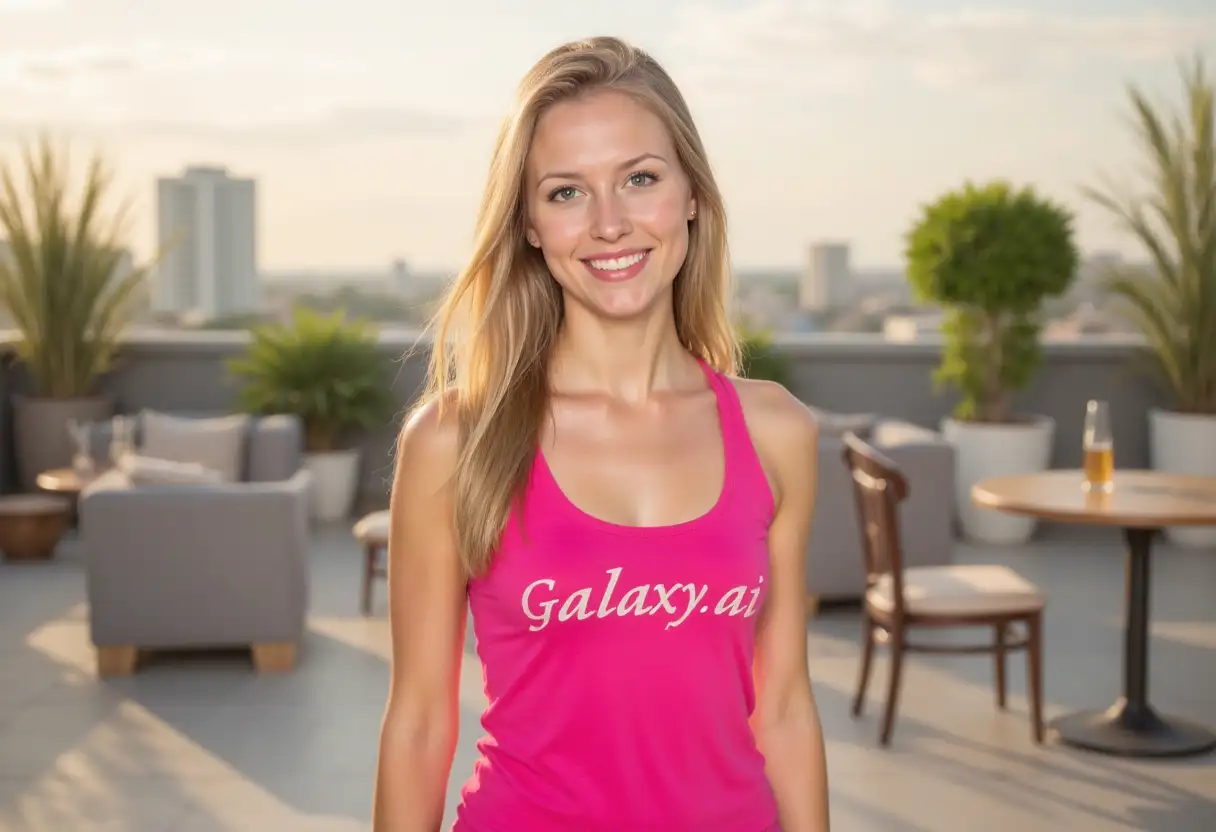
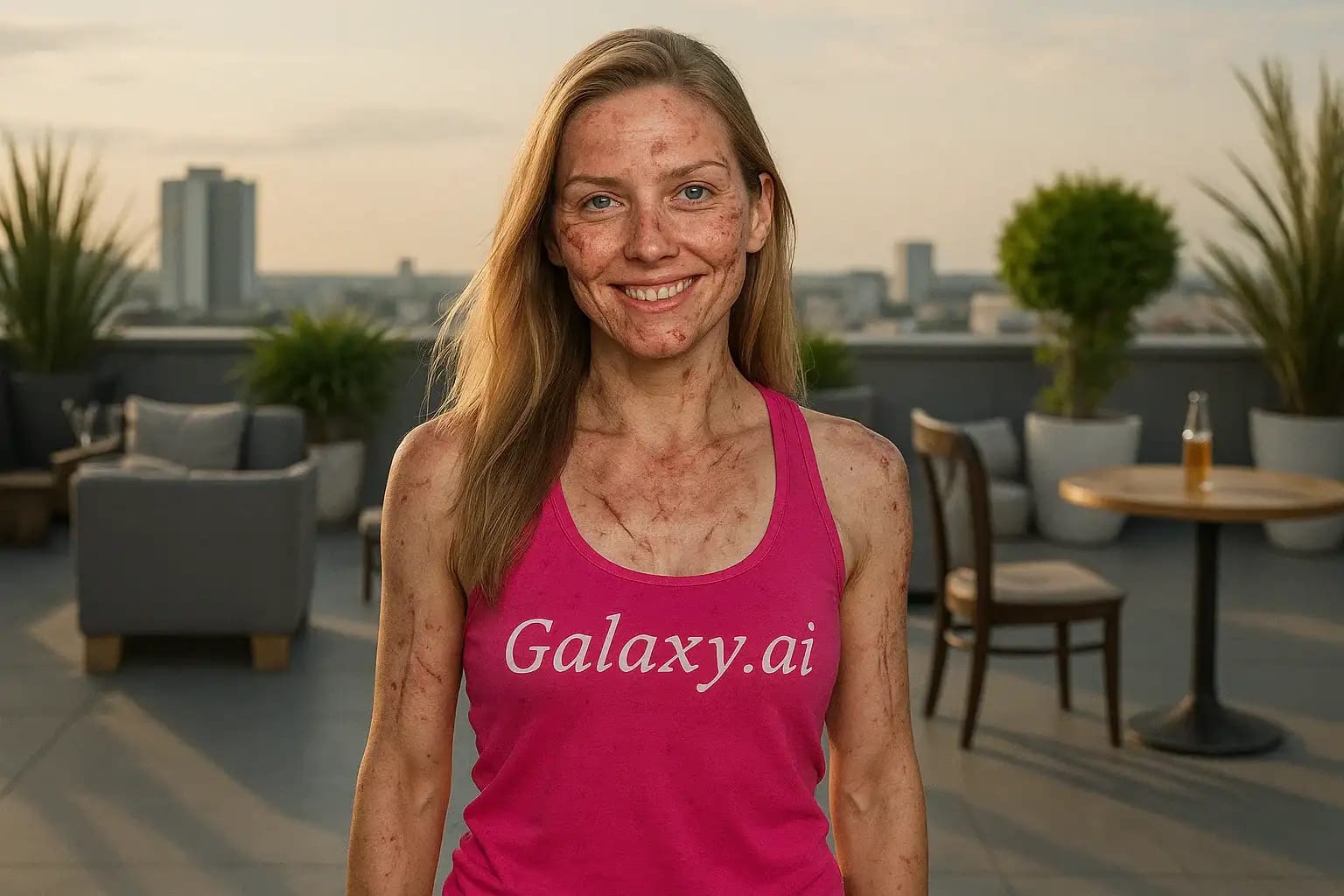
Compare the source image with each finished result.
Source image
Result
What Magica will ask for
The agent gathers these inputs and preferences in the conversation before it starts.
Upload Face Photo
attach a photo to apply the filter
Why Choose Our AI Scars Filter?
Transform your photos with realistic, customized scar effects using our advanced AI technology. Perfect for creative projects, character development, or exploring different looks!
Hyper-realistic scar application
Natural skin texture preservation
Seamless blending with original features
Simple one-click operation
Fast AI-powered processing
No photo editing expertise needed
Ideal for creative and professional use
How Our Scars Filter Works
Adding realistic scars to your photos is quick and easy:
01
Attach Your Photo
Choose a clear photo where the face is visible. Front-facing portraits work best!
02
Apply the Filter
ask Magica to generate the result and watch as our AI adds natural-looking scars to your image.
03
Download & Share
Preview the transformed image and download your high-quality result.
Key Features of the AI Scars Filter
Realistic Scar Effects
Creates authentic-looking scars that maintain natural skin texture and lighting.
Smart Blending Technology
Seamlessly integrates scars with existing facial features and skin tone.
Texture Preservation
Maintains the original photo's quality while adding realistic scar details.
Natural Appearance
Creates subtle, believable scars that look naturally healed.
Who Can Benefit from the Scars Filter?
Our AI Scars Filter serves various creative and professional needs.
Costume & SFX Artists
Preview makeup effects or plan character designs for productions.
Digital Artists
Create reference images for artwork or character illustrations.
Photographers
Experiment with dramatic portrait effects or themed photoshoots.
Makeup Artists
Plan and visualize scar makeup applications before execution.
Film & Theater
Pre-visualize character makeup and effects for productions.
Creative Enthusiasts
Explore different looks and effects for personal creative projects.
Tips for Best Scar Filter Results
Tip 1
Use High-Quality Photos
Clear, well-lit images allow the AI to create more realistic scar effects.
Tip 2
Choose Good Lighting
Even, natural lighting helps the AI create more convincing scar effects.
Tip 3
Front-Facing Angles Work Best
Direct face shots allow for the most natural-looking scar placement.
Tip 4
Avoid Heavy Makeup
Natural skin texture allows for more realistic scar application.
Frequently Asked Questions About Our Scars Filter
How realistic do the scars look?
Our AI creates highly realistic scars that blend naturally with skin texture and lighting. The results look like well-healed scars with appropriate depth and coloring.
Can I control where the scars appear?
The AI intelligently places scars in natural-looking positions. While exact placement isn't customizable, the results are designed to look realistic and believable.
Will it work with all skin tones?
Yes, our AI is trained to work effectively with all skin tones, creating natural-looking scars that blend appropriately with any complexion.
Does it affect image quality?
No, our filter maintains the original image quality while adding the scar effects. You'll receive a high-resolution output with natural-looking results.
Is my photo data secure?
We take privacy seriously. Your photos are processed securely, used only for the filter application, and not stored long-term or used for other purposes.