This blog post provides a comprehensive guide on how to activate your myPOS Business Card using the mobile app, detailing the necessary steps and tips for a smooth activation process.
In today's digital age, managing finances and business transactions has become easier with mobile applications. One such tool is the myPOS Business Card, which allows users to handle their business finances efficiently. This guide will walk you through the process of activating your myPOS Business Card using the mobile app, ensuring you can start using your card without any hassle.
The myPOS Business Card is designed for entrepreneurs and business owners, providing a convenient way to manage payments and expenses. With this card, users can make purchases, withdraw cash, and manage their business finances directly from their mobile devices.
Before you begin the activation process, ensure you have the following:
Start by launching the myPOS mobile app on your smartphone. If you haven't downloaded it yet, you can find it in your device's app store. Once installed, open the app and log in using your myPOS account credentials.
After logging in, look for the 'Card Management' section within the app. This section is typically found in the main menu or dashboard. Tap on it to proceed to the card activation options.
In the Card Management section, you will see a list of your cards. Locate the myPOS Business Card that you wish to activate. Tap on it to access the activation settings.
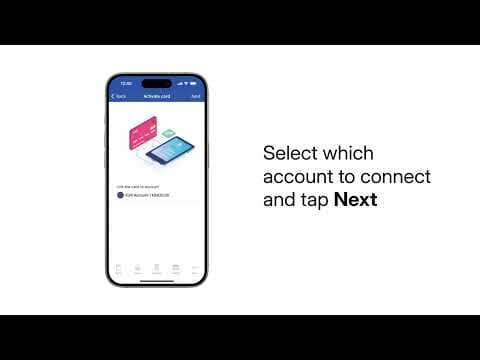
To activate your card, you will need to enter the activation code that was provided to you when you received your card. This code is essential for verifying your identity and ensuring that you are the rightful owner of the card. Input the code carefully and double-check for any errors.
Once you have entered the activation code, the app will prompt you to confirm the activation. Review the details and confirm your choice. This step is crucial as it finalizes the activation process.
After confirming the activation, you may be prompted to set up your card preferences. This includes setting spending limits, enabling notifications, and other security features. Take the time to customize these settings according to your business needs.
Congratulations! Your myPOS Business Card is now activated. You can start using it for your business transactions immediately. Make sure to keep track of your expenses and manage your finances effectively through the app.
If you encounter any issues during the activation process, consider the following troubleshooting tips:
Activating your myPOS Business Card through the mobile app is a straightforward process that can significantly enhance your business financial management. By following the steps outlined in this guide, you can ensure a smooth activation experience and start leveraging the benefits of your myPOS Business Card right away. Stay organized and efficient in your business transactions with this powerful tool at your fingertips.