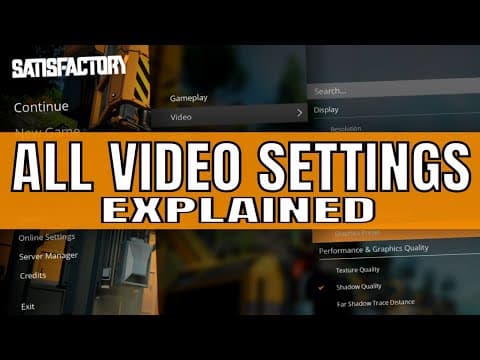
This guide provides an in-depth look at the video settings in Satisfactory 1.0, offering recommendations for optimizing graphics and performance based on system capabilities. It covers resolution, graphics API, frame rates, and various graphical settings to enhance gameplay experience.
Satisfactory is a game that combines exploration and factory building in a 3D open world. To ensure an optimal gaming experience, understanding the video settings is crucial. This guide will walk you through the various options available in the video settings tab, helping you to configure them for the best performance and visual quality.
It is highly recommended to use the native resolution of your display when playing Satisfactory. Lower resolutions can actually decrease your frames per second (FPS), contrary to what might be expected from other games. Playing in full screen mode is also advisable, as it generally provides better stability and performance.
You have the option to choose between DirectX 11, DirectX 12, and Vulkan. If your system supports it, selecting DirectX 12 is the best choice for performance.
Set the maximum frame rate to match the refresh rate of your monitor. For example, if your monitor supports 144 Hz, set the max FPS to 144. If you experience significant FPS issues, consider locking it to 60 FPS within the game settings instead of Windows settings.
Satisfactory includes a hardware benchmark feature that can help determine optimal settings for your system. Running this benchmark will provide a baseline graphics preset, which you can then adjust according to your preferences.
This setting controls how far vegetation is rendered. If you experience stuttering, reducing this setting to near can help. However, for the best visual experience, select very far.
View distance significantly affects performance. If you encounter issues, consider lowering this to medium or near, but be aware that it may affect the overall visual quality of the game.
Cloud quality can provide a substantial FPS boost if turned off. If you are experiencing performance issues, consider disabling clouds.
Motion blur can detract from the gaming experience and reduce FPS. It is generally recommended to disable this unless you have a personal preference for it.
This setting affects the accuracy of items on conveyor belts. If you have a powerful CPU, you can keep this on high. However, if you experience lag in large bases, consider lowering it to reduce CPU load.
Depending on your GPU (AMD or NVIDIA), select the appropriate upscaling method. This can significantly enhance performance. If you cannot use upscaling, set it to none.
For most users, Temporal Anti-Aliasing (TAA) is the best choice for stability and performance. If you have an NVIDIA card, consider using DLSS for improved performance.
This setting caps how many items are shown on conveyor belts. If you experience severe lag, capping this to 30 can help.
Gamma is a personal preference setting that does not affect performance. V-Sync can eliminate screen tearing but may impact performance, so it should be unchecked if not needed.
This setting can improve FPS when building factories. It is generally recommended to keep this checked for better performance.
This setting smooths the transition between low and high-quality models in the distance. While it can cause FPS drops, most players prefer to keep it enabled to avoid noticeable changes in model quality.
Configuring the video settings in Satisfactory can greatly enhance your gaming experience. By following the recommendations outlined in this guide, you can optimize both performance and visual quality based on your system's capabilities. Experiment with the settings to find the perfect balance that suits your gameplay style. Happy gaming!