Editorial Team
5 min read
Gemini can now click and type across Mac apps and websites in a background window, Google says. The paid rollout expands its desktop automation, but app permissions expose active accounts and file changes that backups cannot always undo.
Google is giving Gemini, its AI assistant, the ability to operate native Mac applications and websites in an isolated background window. Announced on November 19, the feature lets users delegate clicking, typing and form filling while continuing to use their computer, according to the company's announcement.
The consequential change is the reach of that delegation. Gemini's existing Mac Task feature, previously called Gemini Spark, could work with local files and connected services such as Gmail and Google Calendar. Computer use extends that reach to software interfaces, including applications that do not connect directly to one another, as the feature report explains. That potentially removes repetitive transfers between programs, while giving the assistant access to more of the user's working environment.
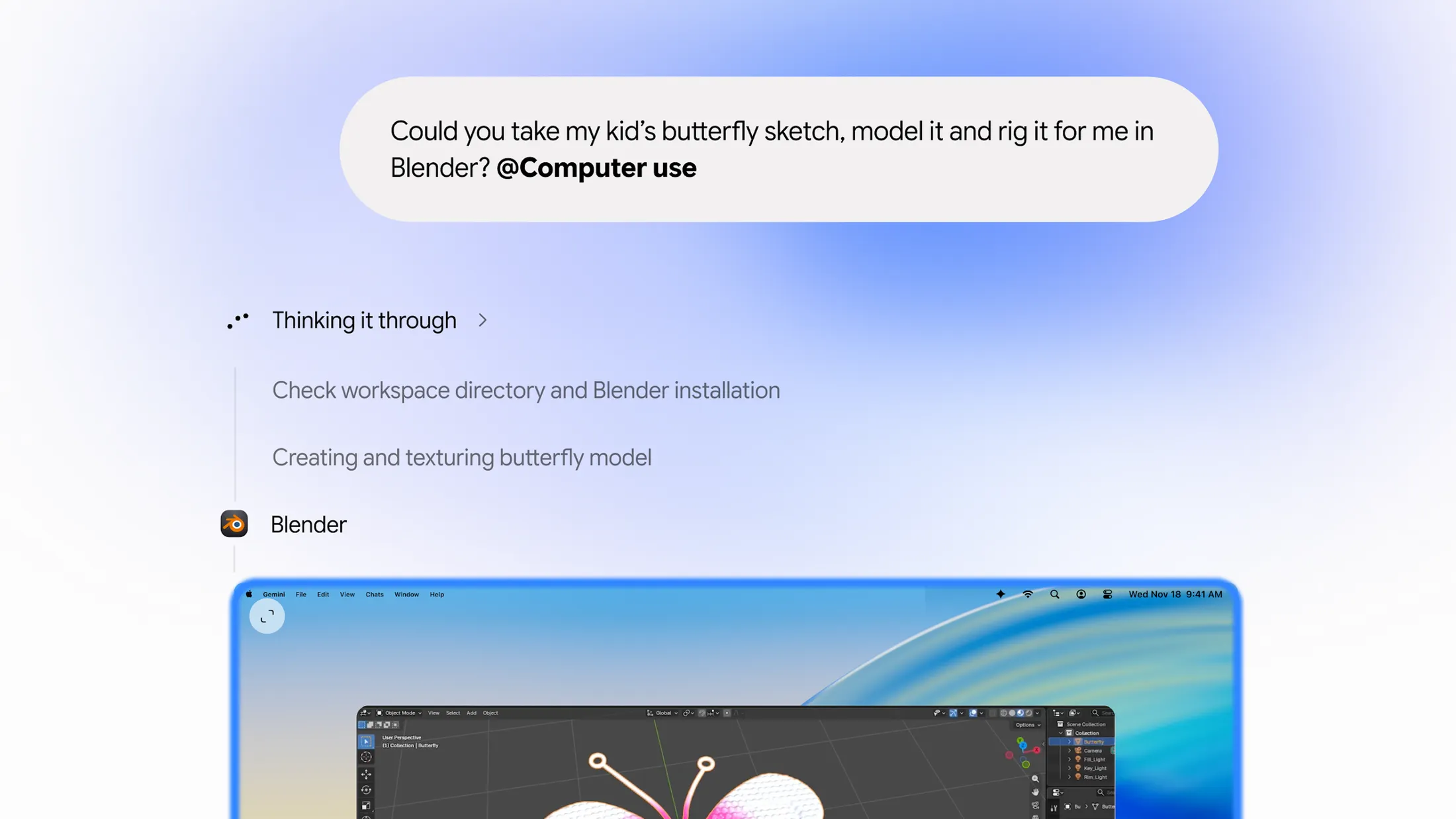
Google's company-reported demonstration asks Gemini to model and rig a child's butterfly sketch in Blender. Image: Google. Source: Google.
Google's examples include extracting weights, dimensions and addresses from PDFs to populate shipping quotes; gathering live dashboard metrics and screenshots for a Google Slides presentation; batch-editing photographs; and preparing resale listings from clothing photos. These are proposed uses, rather than evidence of measured completion rates or time savings.
Users start a Task in the Mac app and mention @Computer use in their request. Google says the work moves to a virtual screen, with a live preview in the conversation and a control to stop the task. Its setup instructions require enabling computer use and, if necessary, macOS Accessibility and Screen & System Audio Recording permissions.
Epic says it is using AI to rewrite parts of Unreal Engine and plans to let developers connect their preferred models to UE6. The strategy combines claimed maintenance gains with a broader overhaul of programming, distribution and portable game assets, while rival Unity already offers outside-model connections.
The release follows earlier steps toward delegated work. Google broadened access to Gemini Tasks earlier in the same week, covering activities such as website sign-ins, purchases and appointments, according to the launch report. Google had also built computer use into its Gemini 3.5 Flash model for developers in June, as noted in the rollout coverage.
Google is extending an existing assistant into a market where rivals already offer desktop agents. Anthropic, the AI developer behind the competing Claude assistant, previously released computer use as an experimental developer API beta, letting its Claude 3.5 Sonnet model inspect screens, move a cursor, click and type. That API release established a precedent, but is not a direct comparison with a consumer Mac app.
A closer alternative arrived before Google's launch. Anthropic said on September 2 that Claude could work in the background in Cowork and Claude Code, clicking, typing and opening apps while the user continued working, according to coverage of its announcement. The report described Mac availability for Pro and Max customers. Leaving the cursor free therefore gives Gemini subscribers a capability already offered by a rival, rather than establishing a new category of desktop automation.
Google says users choose which apps Gemini can access and approve sensitive actions. Google also pauses for logins and payments, according to the feature report. The distinction matters: permission is not required anew for every click. On first use of an app, users can deny access, allow it or always allow it. Choosing always allow adds the app to an allowed list and removes subsequent permission requests unless the user changes that setting. Apps can also be explicitly blocked.
Those controls govern meaningful powers. Google's support guidance warns that Gemini can access logged-in accounts and active sessions in native Mac apps, share information with desktop applications, and read or interact with visible multifactor-authentication prompts or codes. Allowing certain editors or developer tools can enable shell execution or broader file-system changes.
The same guidance says untrusted material displayed in one app can manipulate Gemini into taking actions in another permitted app. In other words, keeping the cursor free describes how the user and assistant share the screen; it does not establish that the assistant's actions are confined to a disposable environment.
Recovery is also conditional. Google says Gemini will try to make temporary backups, but cannot always do so, and some actions are irreversible. Backups last 24 hours or until the next prompt, with coverage dependent on app settings and permissions. Google also warns that automating third-party apps may conflict with their terms of service.
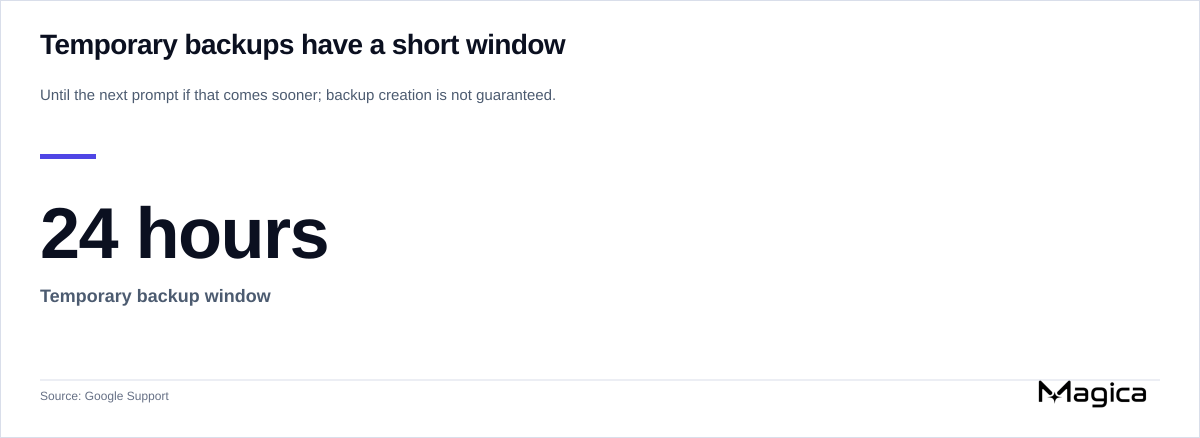
Google's company-reported guidance says temporary backups last 24 hours or until the next prompt; backup creation is not guaranteed. Graphic: Magica; source: Google Support. Source: Google Support.
Google's announcement limits the rollout to English in the United States, personal Google accounts belonging to adults 18 or older, and Apple Silicon Macs running macOS Sequoia 15.0 or later. It lists Google AI Plus, Pro and Ultra subscribers as eligible. The support page, however, lists only Pro and Ultra and excludes work and school accounts. The published guidance therefore leaves Plus eligibility inconsistent.
Google did not give a date for expansion to other markets or platforms, according to the launch report. The immediate test is whether the advertised workflows can be completed reliably with enough supervision avoided to make delegation worthwhile. The announcement supplies examples but no measured task-success rate, completion-time comparison or cost per completed workflow. For subscribers deciding which apps to authorize, the missing evidence is how often Gemini needs intervention, what errors survive its confirmation checks, and whether the time saved exceeds the time spent reviewing and repairing its work.
At Ignite, Nvidia and Microsoft are expanding local coding AI, cloud desktop streaming and Azure infrastructure. The announcements build on an existing Windows AI strategy, with AMD alternatives, staggered availability and no comparable deployment-cost results in the announcements.
Microsoft and Nvidia are expanding Azure’s Vera Rubin virtual-machine preview, with systems already running in its data centers. Microsoft’s separate confidential-AI showcase covers four GPUs, while the announcements leave pricing, regions and general availability unspecified.
Meta is reconsidering its 2030 climate deadline after net emissions reached 11.8 million tonnes in 2025. Hardware and infrastructure purchases dominate its reported footprint, while new gas generation adds a longer-term challenge.
Three House committee chairs want the Remote Access Security Act in the annual defense bill as scrutiny of Nvidia intensifies. The available Senate text would authorize controls on specified foreign users’ remote access, with computing limits left to Commerce.
Google Quantum AI reports tests of quantum contextuality spanning up to 105 qubits on Willow processors. The experiments expose hardware errors and beat restricted classical strategies, while the largest task relies on an unproven classical benchmark.
A bipartisan House disclosure shows requests to sell 3.4 million AI chips to China and approvals for more than 879,000. The oversight question is whether Commerce verified the buyers, supply protections and access restrictions behind those authorizations.
OpenAI says its internal Performance Factory tracked more than 1,700 investigations in just over three months. About 400 cases reached proposed fixes, but far fewer shipped repairs used Codex’s code unchanged, and engineers retain approval.
Activists protested Anthropic’s stock-market debut outside Nasdaq, with at least one arrest and conflicting accounts of the total. Their campaign targets retirement-fund exposure to AI shares, alongside concerns about jobs, data centers and public accountability.
Anthropic says cash, growing revenue and multiyear payment schedules support its vast compute commitments. Its filing shows why flexibility matters: short-term capacity costs more, while major cloud contracts require payment regardless of usage.
OpenAI is rolling out live transcription for dictated ChatGPT prompts across free and paid plans. Users can see words as they speak and review the text before sending, but the company has not supplied performance measurements or a replacement recording maximum.
Boltz has raised a Bessemer-led $110 million Series A to expand molecular-design tools sold by usage. Its open-source research brought broad adoption; the commercial test is whether paid computation delivers repeatable gains in laboratory discovery.
Donald Trump said he and Xi Jinping supported minimal AI guardrails but had not discussed definitions. Their Shenzhen meeting leaves unresolved how bilateral safety cooperation would coexist with U.S. opposition to global regulation.
The House AI Safety and Innovation Caucus promises legislative advocacy and rapid incident briefings. Its members already have bipartisan safety proposals in play, making the choice of safeguards its next test.
Binance Wallet says it will return all subscription commitments, distribute roughly 2,957 Anthropic tokenized shares free and add a $1 million token giveaway after demand far exceeded its allocation.
Early Anthropic investor Dustin Moskovitz is urging frontier AI developers to slow down. He and Cari Tuna moved their stake to a nonprofit in early 2025, directing potential returns toward philanthropy while leaving questions about the holding's value and governance rights.
A national study finds higher odds of hosting data centers in majority-Black, Hispanic and Asian neighborhoods. Facility types, zoning rules and unequal access to public hearings complicate who bears the costs and receives the benefits.
A debut-day estimate values the Anthropic shares FTX sold in 2024 at $49.7 billion. The comparison exposes the scale of subsequent paper gains, but contrasts cash raised for bankruptcy repayments with a hypothetical stock-market valuation.
Anthropic raised $81.3 billion in a record IPO and opened 34% above its offer price before retreating. Rapid revenue growth and adjusted operating profits sit alongside vast computing commitments and limited investor control.
The Kimi developer reportedly abandoned planned Nvidia B300 capacity for 2027 after new US restrictions. The deal exposes financing risks for overseas AI clouds, but neither a model delay nor a $150 million cash loss is established.