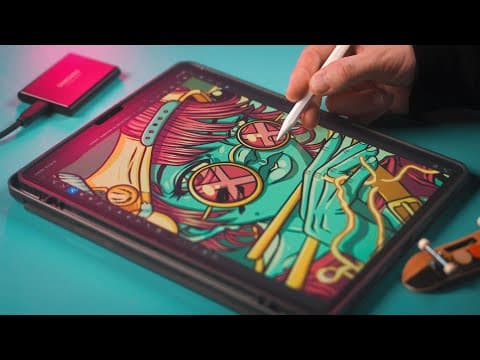
This blog post details the complete digital art workflow of an artist, covering the devices, apps, and techniques used to create illustrations and designs. It emphasizes the importance of choosing the right tools, setting up documents correctly, and the step-by-step process from sketching to finalizing artwork for print.
Creating digital art can be an intricate process, and understanding the workflow is essential for both beginners and seasoned artists. In this post, I will share my complete digital art workflow, including the devices I use, the applications I rely on, and the techniques I employ to produce my illustrations and designs.
The cornerstone of my digital art setup is the iPad Pro. I recently upgraded to the 2021 M1 12.9-inch fifth-generation model with 256 GB of internal storage. I opted for a refurbished version, saving $300 compared to buying new. My previous iPad was a third-generation model from 2019, which served me well but began to slow down, especially when using Adobe Fresco.
I use the second-generation Apple Pencil, which provides a natural drawing experience with zero discernible latency. The combination of the iPad's portability and the Apple Pencil's precision makes it my preferred choice for digital art.
To enhance my drawing experience, I install a Paperlike screen protector on my iPads. This matte finish mimics the feel of drawing on paper, making it more enjoyable, despite slightly dulling the iPad's Retina display.
I also have a Lenovo ThinkPad as a reference laptop, connected to a 55-inch Amazon Fire TV via HDMI. This setup allows me to view reference images on a larger screen while I work. For reference images, I use sites like Pixels, Envato Elements, and Motion Array, ensuring I have the proper licenses for commercial use.
I keep my workspace simple, with a basic Logitech mouse and a low-end keyboard. Since my workspace doubles as my painting area, I prefer not to use fancy equipment that might get damaged by paint or other art supplies.
The first app I use is Procreate, where I do my pencil sketching. I typically set my document size to 15 inches by 20 inches at 300 DPI, which is ideal for t-shirt designs. The sketch serves as a roadmap for the entire piece, and I often work in layers, with my new iPad allowing for more layers than my previous model.
I primarily use the Peppermint Pencil brush in Procreate, which behaves like a real pencil. My drawing technique involves sketching elements in small chunks rather than roughing out the entire composition first. This method allows me to visualize the artwork as I go, even if it may seem inefficient to some.
Once the sketch is complete, I move to Adobe Fresco for inking. I import my Procreate sketch and use vector brushes to create clean, scalable lines. The flexibility of vector graphics allows me to resize my artwork without losing quality. I often adjust my brush settings for different effects, ensuring a clean and professional finish.
After inking, I stay in Fresco to add color. I use the fill tool to apply flat colors, ensuring that all gaps in the line art are closed to avoid filling errors. I then create a new layer for shading, using a vector brush to add depth and dimension to the artwork.
Once the coloring is complete, I export the artwork to Adobe Illustrator for resizing and then to Photoshop for final adjustments. In Photoshop, I separate each color into its own layer, which helps when selecting Pantone colors for printing. I use actions in Photoshop to streamline this process, allowing me to quickly promote colors to new layers and apply color overlays.
Finally, I create mockups of my designs on t-shirts using templates from Photo Fic. This step allows me to visualize how the design will look on actual garments. Once satisfied, I send the final design to my local screen printing shop for production.
This workflow has been honed over time, and while it may seem complex, each step is crucial for producing high-quality digital art. From selecting the right devices and applications to understanding the nuances of each stage in the process, I hope this guide provides valuable insights for anyone looking to improve their digital art skills. Whether you're a beginner or an experienced artist, refining your workflow can lead to more efficient and enjoyable creative sessions.