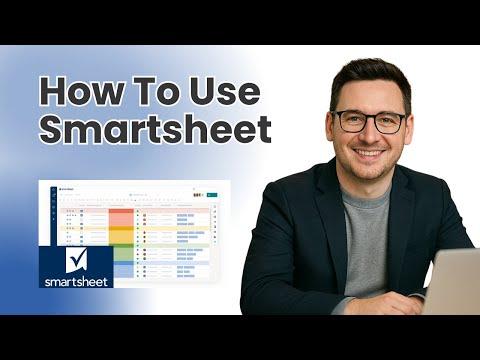
This blog post provides a detailed step-by-step tutorial on how to use Smartsheet, covering its interface, functionalities, and features for project management, including creating sheets, managing tasks, using Gantt charts, and automating workflows.
Smartsheet is a powerful tool for project management that combines the familiarity of a spreadsheet with advanced project management functionalities. In this guide, we will walk through the essential features of Smartsheet, especially for new users, to help you get started effectively.
Upon logging into a new Smartsheet account, users are greeted with a clean interface. For those on a free trial, all functionalities are accessible, allowing you to explore the tool fully.
The home page displays notifications, requests, and a clear message indicating that the account is new. As you begin to use Smartsheet, this area will populate with relevant information.
The left-hand panel is crucial for navigation and includes several important tools:
To create a new sheet, navigate to the Browse section and select Create. You can choose between different views, with the Grid view being the default, similar to Microsoft Excel.
Smartsheet offers various views to visualize your project:
One of the standout features of Smartsheet is its automation capabilities. You can create workflows to set triggers and notifications based on changes in your sheet. For example, you can notify team members when a task is updated or completed.
Smartsheet allows you to create reports that summarize data from multiple sheets. This is particularly useful for tracking progress across various projects. Additionally, dashboards can be created to visually represent key metrics and project statuses using widgets.
Collaboration is seamless in Smartsheet. You can share sheets with team members, assigning different permission levels (admin, editor, viewer) based on their roles. Comments can be added at both the row and sheet levels to facilitate communication.
Smartsheet is a versatile tool that enhances project management through its intuitive interface and powerful features. By following this guide, new users can effectively navigate Smartsheet, create structured project plans, and leverage automation for improved collaboration. Whether you are managing a small project or a large portfolio, Smartsheet provides the tools necessary to succeed.
If you found this guide helpful, please consider sharing your thoughts or questions in the comments below. Happy project managing!