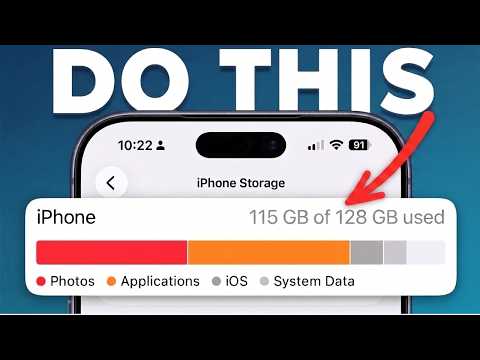
iPhone storage often fills up quickly due to hidden cached data and system files, not just photos and apps. This article reveals how to identify and clear this invisible clutter by deleting and reinstalling apps, clearing Safari data, managing message history, optimizing iCloud photo storage, and performing iOS updates or restores. Following these steps can recover gigabytes of storage without losing personal data.
Have you ever tried to take a photo or download an app on your iPhone, only to be told that your storage is full? You check your settings, see the storage bar maxed out, and start deleting apps, photos, and videos you want to keep just to free up space. Yet, a few weeks later, the storage is full again.
The surprising truth is that your iPhone storage fills up quickly not mainly because of your photos or apps, but due to hidden data that accumulates silently in the background. This data is often not clearly shown on Apple's storage screen and is rarely touched by users.
In this article, we will explore this hidden data, why it accumulates, and the secret trick Apple never mentions to clear it. By following these steps, many users recover gigabytes of storage they didn’t know they had.
When you use your iPhone, almost every app you open creates cached data. Think of it as a paper trail:
This cached data is not your actual content like photos or apps but temporary data created to make your phone run faster. Over time, it accumulates into gigabytes of invisible clutter, categorized vaguely as "Other" or "System Data" in your storage breakdown.
If you’ve seen a large gray or white block labeled "Other" in your storage and wondered how to shrink it, that’s this cached data and temporary files piling up.
Here’s the step-by-step method to find and clear cached data:
Most people look for the biggest apps and delete them, but often the apps themselves aren’t the problem. Instead, look for apps where the Documents & Data size is much larger than the app size.
For example, an app might be 80 MB, but its documents and data could be 2.4 GB — mostly cache.
When you find such apps, you have two options:
Focus on the top 5 to 10 apps with the largest documents and data, especially social media, streaming, and podcast apps. This can dramatically increase your available storage.
Safari, the built-in browser, accumulates cached website data over time, sometimes reaching gigabytes.
To clear this:
This clears the surface layer, but there’s a deeper layer:
This second step often clears significantly more space. Users who haven’t cleared this in a year or two can recover over a gigabyte from Safari alone.
Your Messages app can be one of the largest storage consumers due to every photo, video, voice memo, GIF, and attachment stored locally in full quality.
To manage this:
For a more powerful fix:
This setting automatically deletes old messages and their media after the chosen period. When you change this setting, your iPhone will ask if you want to delete older messages immediately — say yes.
This can free up a staggering amount of storage, especially on phones used for several years.
If you use iCloud Photos, your iPhone may store full-resolution versions of every photo and video locally, consuming enormous storage.
To optimize:
This keeps full-resolution photos in iCloud and smaller optimized versions on your device. You can still view, share, and edit photos instantly. The full version downloads automatically when needed.
For large photo libraries, this setting alone can recover tens of gigabytes without deleting any photos.
There is a special type of iOS restore that clears accumulated system data and temporary files without deleting your content, apps, or personal data.
System data includes temporary files, failed download fragments, log files, cached system processes, and other background data that iOS generates but never fully cleans up. This data forms the "Other" category in storage that is hard to shrink.
Update iOS: Every iOS update performs a clean reinstall of the operating system, wiping out accumulated system data.
Users who update after running the same iOS version for months often see their system data shrink by 2 to 4 GB immediately.
Full Device Backup and Restore: If you’re already on the latest iOS version, you can do a deeper clean by backing up your phone to a computer (using Finder on Mac or iTunes on Windows), erasing it, and restoring from the backup.
This method recovers more system data but takes longer and requires a computer.
Most people only restore their phones when broken, but proactively doing this on phones 2-3 years old is the most powerful storage recovery tool Apple never mentions.
After freeing up space, maintain it by:
These simple habits keep your storage manageable without sacrificing photos or apps.
Many users assume their iPhone lacks enough storage, but it’s often filled with invisible clutter. Now you know how to find and remove it effectively.
Try these tips and see how much storage you can recover on your iPhone.