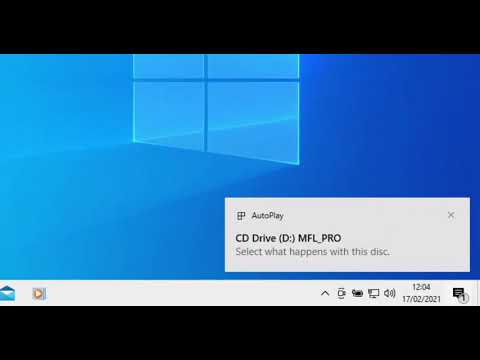
This guide provides a comprehensive walkthrough for installing programs from CD or DVD in Windows 10, covering steps for both autoplay and manual installation methods.
In today's digital age, most software installations occur over the internet, making the use of CDs and DVDs less common. However, there are still instances where you may need to install a program from a physical disc. This guide will walk you through the process of installing software from a CD or DVD on a Windows 10 computer.
Before you begin, it is essential to verify whether your computer or laptop has a CD or DVD drive. Many modern devices no longer include this feature. To check:
Once you have confirmed the presence of a CD/DVD drive:
After inserting the disc, you should see an AutoPlay window pop up. This window will prompt you to select what action to take with the disc. Follow these steps:
If the AutoPlay window does not appear, you may need to enable AutoPlay manually:
If AutoPlay still does not work, you can manually locate the installation file:
This guide has provided you with a comprehensive overview of how to install a program from a CD or DVD in Windows 10. Whether using AutoPlay or manually navigating through File Explorer, you can successfully install software from physical media. If you encounter any issues, ensure that your CD/DVD drive is functioning correctly and that the disc is not damaged. Thank you for following this guide, and happy installing!