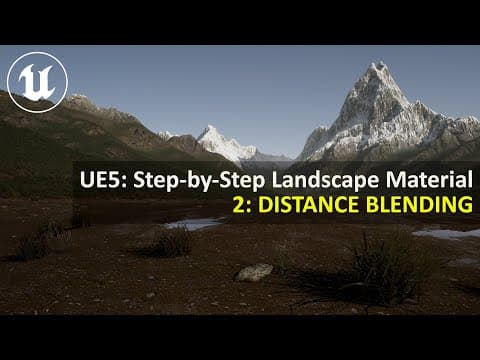
This blog post provides a comprehensive guide on how to blend foreground and background tiling in Unreal Engine 5.4 to create realistic landscape materials. It covers the setup of tiling parameters, the use of camera depth fade for masking, and the organization of material attributes for better workflow.
Welcome to the second episode of our series on developing an automatic landscape material in Unreal Engine 5.4. In this tutorial, we will focus on blending the tiling of textures in the foreground and background to achieve a more realistic landscape effect.
In the last episode, we set up a basic landscape material with a single layer texture and tiling controls. We encountered an issue where a large tiling size worked well for distant parts of the landscape, while a smaller tiling size was better for close-up views. Today, we will learn how to blend these two tiling sizes effectively.
To begin, ensure you have completed the previous episode. We will create separate streams for near and far tiling sizes. Follow these steps:
near tiling size.far tiling size, setting its default value to 40. The near tiling size will have a default value of 4.far tiling size to create near UVS and far UVS.To keep our workspace tidy, we will use named reroot nodes:
near UV and another for far UV, assigning them a consistent color for easy identification.Next, we will set up texture nodes for both foreground and background:
far UV to this new texture node.far UV as well.To blend the textures based on camera distance, we will use a mask:
camera depth fade node. This node creates a mask that differentiates between elements closer to the camera and those further away.far tiling size parameter to create two new parameters: blend distance transition and blend distance start. Set their default values appropriately (0 for transition and 2000 cm for start).To visualize the mask:
blend distance start and blend distance transition to see how they affect the blending.To blend the foreground and background textures:
lerp (linear interpolation) node to blend between the two texture inputs based on the depth fade mask.After setting up the blending:
blend distance start and blend distance transition parameters to achieve a smooth transition between the foreground and background textures.landscape general, to keep your workspace clean.In this tutorial, we successfully blended foreground and background tiling in Unreal Engine 5.4, creating a more realistic landscape material. In the next episode, we will explore creating a four-layer landscape for different elevation levels. Stay tuned for more insights and techniques to enhance your Unreal Engine projects!