This guide provides a step-by-step process for installing macOS on a PC, allowing users to dual boot with Windows. It covers the necessary requirements, downloading the macOS version, preparing the installation media, and completing the installation process.
In recent years, many Windows users have considered trying out macOS due to its professional capabilities. However, the high cost of Mac devices often deters users from making the switch. Fortunately, it is possible to install macOS on a PC, whether it's a desktop or a laptop, without spending a fortune. This guide will walk you through the process of installing the latest version of macOS alongside your existing Windows operating system.
Before we begin, you will need to gather a few essential items:
Start by downloading the version of macOS you want to install. You can choose from various versions, from older releases to the latest macOS. Ensure that you download the correct version for your hardware.
Once you have downloaded macOS, you will need to prepare the boot files. This involves creating a dedicated folder for your laptop or desktop and ensuring you have the necessary boot files for AMD systems if applicable.
To install macOS alongside Windows, you will need to partition your hard drive:
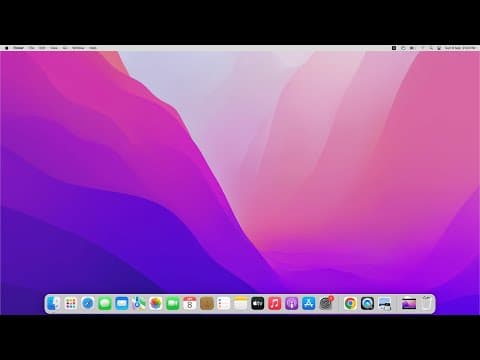
After the installation is complete, your computer will restart. You may need to enter the boot menu again to select macOS for the first time. Once booted into macOS, you can configure your settings and enjoy the new operating system.
Congratulations! You have successfully installed macOS on your PC alongside Windows. This dual-boot setup allows you to enjoy the benefits of both operating systems without the need for expensive hardware. Remember to keep your system updated and enjoy exploring the features of macOS. If you found this guide helpful, consider supporting the channel by liking and sharing the video, and leave a comment with your thoughts or questions.