This article explains how to manually edit code within HighLevel's Vibe Code Editor, including navigating files, making text and color changes, handling errors, and using search and replace features to customize your website efficiently without relying solely on AI-driven edits.
Many users enjoy using Vibe coding with Agent Studio inside HighLevel to create websites through code. While Vibe coding allows for AI-assisted website creation, there are times when you might want to manually edit the code yourself to make specific updates or customizations. This guide will walk you through how to manually edit your code within HighLevel's Vibe Code Editor.
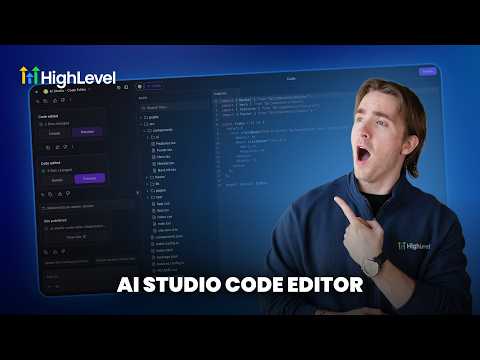
Inside the Vibe coding editor, you start with a basic landing page. To access the code for your app or website, click the code icon located at the top of the editor interface. This action opens up the file structure of your project.
The Vibe coder automatically organizes your files into folders such as public, src, UI, and different pages. On the right-hand side, you will see the code editor where you can make your manual changes.
For example, if you want to change some text on your landing page, such as the title that appears after a form submission, you can do so directly in the code. Instead of using the AI-powered Vibe coder that consumes credits, you can manually update the text.
Suppose the current title says "success" and you want to change it to "we got your info." Simply locate the text in the code editor, update it, and save your changes. The update will immediately reflect on the left-hand side preview inside the chat window.
If you accidentally introduce an error, such as missing a comma, and save the code, the build process will notify you that it was unsuccessful. You will see an error message explaining what went wrong.
HighLevel's Vibe Code Editor offers a helpful feature to fix these errors automatically. By clicking "try to fix," the system scans your codebase and attempts to correct the mistake for you. This feature helps maintain smooth development without needing to debug manually.
The editor supports powerful search capabilities. You can press Command + F (or Ctrl + F on Windows) to find specific pieces of information within your code.
For instance, if you want to change the color scheme of your website, you can search for a particular hex color code and replace it with a new one. The editor allows you to replace all instances of a color code throughout your project with a single click, making bulk updates efficient.
Besides searching within files, you can also search for specific files in the file explorer. Whether you need to find a CSS file, an HTML file, or an index file, the file search helps you quickly locate the part of your website you want to edit.
If you want to make direct edits to your Vibe Code app without relying on the chat box or AI credits, the manual code editor inside HighLevel is a powerful tool. It allows you to:
Feel free to explore these features to customize your website exactly how you want it. If you have any questions, you can leave comments on the video or consult the help documentation.
Thank you for reading, and happy coding!
This guide was inspired by Andrew's tutorial on manual code edits in HighLevel's Vibe Code Editor.