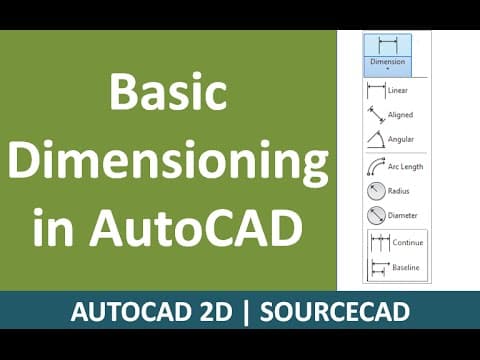
This blog post provides a detailed tutorial on basic dimensioning techniques in AutoCAD, covering linear, aligned, angular, arc length, radius, diameter, continue, and baseline dimensions, along with practical examples and tips for effective use.
AutoCAD is a powerful tool for drafting and design, and understanding how to effectively use dimensions is crucial for creating accurate drawings. In this tutorial, we will explore the basic dimensioning techniques in AutoCAD, using a sample drawing to demonstrate common dimensions.
Dimensions are annotations added to a drawing that provide essential information about the size and location of objects. They are vital for conveying the necessary details to anyone interpreting the drawing.
You can apply dimensions using the Annotate panel on the Home Ribbon or directly from the Annotate ribbon. In this tutorial, we will primarily use the Annotate ribbon to access various dimension tools.
The first dimension we will cover is the Linear Dimension. To apply a linear dimension:
For example, after selecting the linear dimension tool and clicking on a circle, the dimension will be displayed directly.
You can also measure the distance between two points:
The Aligned Dimension tool allows you to create dimensions that are parallel to the object being measured. To use this tool:
To measure angles between two lines, use the Angular Dimension tool:
Note that the angular command works only with lines or polylines, not construction lines.
To measure the length of an arc:
To measure the radius of an arc:
To measure the diameter of an arc:
The Continue Dimension tool allows you to create a chain of dimensions:
The Baseline Dimension tool measures dimensions from a single reference point:
In this tutorial, we covered the basic dimensioning commands in AutoCAD, including linear, aligned, angular, arc length, radius, diameter, continue, and baseline dimensions. These tools are essential for creating accurate and informative drawings. In the next tutorial, we will explore additional dimensioning tools. Thank you for watching, and have a great day!