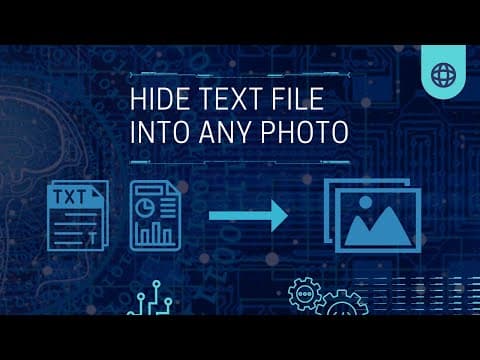
This blog post explains the process of hiding secret messages within images using the steganography method, specifically utilizing the Steghide tool in Kali Linux. It covers the definition of steganography, its applications, and a step-by-step guide on how to embed and extract text files within image files.
Steganography is a fascinating technique that allows individuals to conceal secret messages within ordinary files, such as images. In this blog post, we will explore how to hide a text file within a picture using the Steghide tool, which is available in Kali Linux. This method not only protects your data but also ensures that it remains undetectable.
Steganography is the art and science of hiding secret data within a non-secret file or message. The primary goal is to avoid detection, allowing the hidden data to be extracted at its destination. This technique can be combined with encryption for an added layer of security. Steganography can conceal various types of digital content, including text, images, videos, and audio files.
Steghide is a steganography program that enables users to hide bits of a data file within the least significant bits of another file. This method ensures that the existence of the hidden data is not visible and cannot be easily proven. In this tutorial, we will demonstrate how to use Steghide to embed a text file into an image file.
Before we begin, ensure you have the following:
Start by opening the terminal on your Kali Linux system. This is where you will input the necessary commands to use Steghide.
If Steghide is not already installed, you can install it by entering the following command in the terminal:
sudo apt-get install steghide
To familiarize yourself with the tool's usage, type the following command:
steghide -h
This command will display the help menu, outlining the various options available with Steghide.
To hide your text file within the image, use the embed function. The command format is as follows:
steghide embed -cf [cover_file] -ef [text_file]
Replace [cover_file] with the name of your image file and [text_file] with the name of your text file. After executing this command, you will be prompted to enter a password. This password will be used to encrypt the data.
To retrieve the hidden text file from the image, you will use the extract command. The command format is:
steghide extract -sf [cover_file]
Again, replace [cover_file] with the name of your image file. You will be prompted to enter the password you created during the embedding process. Once entered, the hidden text file will be extracted to your home directory.
In this blog post, we have explored the concept of steganography and how to use the Steghide tool to hide a text file within an image. This method provides a secure way to conceal sensitive information, making it an invaluable technique for those looking to protect their data. By following the steps outlined above, you can easily embed and extract hidden messages in your digital files. Thank you for reading, and happy steganography!