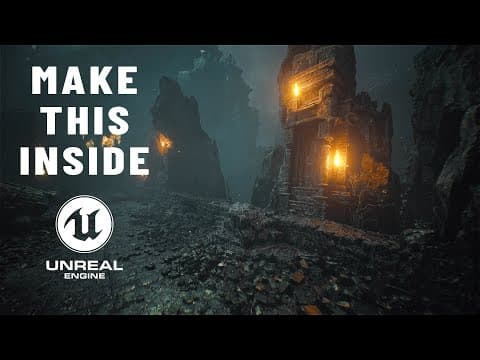
This tutorial provides a step-by-step guide for beginners on how to create a detailed environment in Unreal Engine 5.4. It covers project setup, lighting, material application, and advanced techniques like Nanite and particle systems, ensuring a visually appealing scene.
Welcome back, friends! In this tutorial, we will explore how to create a captivating environment using Unreal Engine 5.4. This guide is designed for beginners and will take you through the entire process, from project setup to advanced techniques. Let’s dive in!
Launching Unreal Engine: Start by launching Unreal Engine and selecting the Games option. Choose the Third Person Template and ensure to include Starter Content. Name your project Tutorial and click Create.
Creating a New Level: Once your project is set up, navigate to File > New Level and select Empty Level. Click Create to proceed.
To create a realistic environment, proper lighting is essential. Follow these steps:
Close the window after setting up the lights.
Modeling the Road: Switch to Selection Mode and select the Box option from the Modeling tools. Click to create a box and adjust its dimensions:
Adding a Mannequin: To visualize the scale, drag a mannequin from the Characters folder into the scene. Adjust its position and scale as necessary.
Applying Materials: Use Megascans materials for a realistic look. Right-click in the Content Folder, select Add Quixel Content, and choose your desired material. Drag it onto the roadway to apply.
To enhance the material with displacement:
Open the Epic Game Launcher and locate your project file. Right-click and select Show in Folder.
Navigate to the Config folder and open DefaultEngine.ini. Add the necessary commands for Nanite support (provided in the description).
Restart Unreal Engine to apply the changes.
Adjusting Material Settings: Open the material applied to the roadway. Ensure to connect the appropriate texture parameters to enable displacement:
Scaling Displacement: Adjust the displacement scaling in the material properties to enhance the effect.
To extend the roadway, select the mesh, hold the ALT key, and drag to duplicate. Adjust the length as desired.
Congratulations! You have successfully created a stunning environment in Unreal Engine 5.4. This tutorial covered everything from project setup to advanced techniques like Nanite and particle systems. Feel free to experiment with different assets and settings to make your scene unique. If you found this tutorial helpful, please subscribe for more content!
Happy developing!