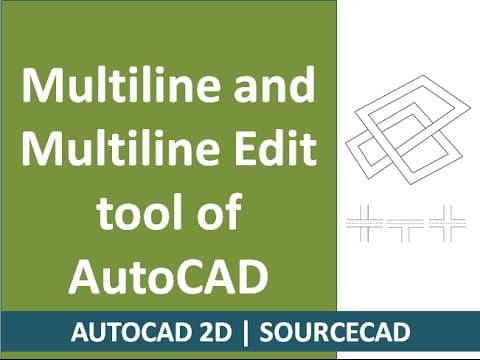
This blog post provides an in-depth tutorial on using multiline commands in AutoCAD, including how to draw, edit, and customize multiline styles effectively for civil and mechanical drawings.
Welcome to this tutorial on the multiline command in AutoCAD. This feature is particularly useful for drawing civil objects and has applications in mechanical drawing as well. In this guide, we will explore the multiline command, its styles, and editing options to enhance your drawing experience.
Multilines in AutoCAD consist of a collection of parallel lines, ranging from 1 to 16, that are drawn consecutively. This allows for efficient drawing of complex shapes and structures. The multiline command can be invoked by typing ML or Mline on your keyboard.
Upon invoking the multiline command, you will see the current settings displayed:
These settings can be modified as needed.
To draw a multiline, follow these steps:
ML and press Enter.The scale determines the spacing between the lines. You can set the scale to different values:
To create a new multiline style, use the command MLSTYLE:
MLSTYLE and press Enter.You can add caps at the start and end of the multiline, as well as arcs to enhance the visual appeal. Adjust the angle between lines as needed, with a default of 90 degrees.
You can select fill colors for the space between the multiline boundaries. Choose from a variety of colors to make your drawings more visually distinct.
To edit existing multilines, use the command MLEDIT:
MLEDIT and press Enter.To save your multiline style:
SAVE and rename your style (e.g., 123)..MLM extension.To load a previously saved style, use the MLSTYLE command and select your saved style from the dialog box.
In this tutorial, we have covered the essential commands and techniques for using multilines in AutoCAD. By mastering these tools, you can significantly enhance your drawing efficiency and accuracy. Stay tuned for our next tutorial, where we will explore more advanced topics in AutoCAD.